MelaGTO v1.1 user manual
MelaGTO v1.1 User Manual
Use this guide to navigate MelaGTO v1.1 on Mac. Screenshots show version v1.1; use your installed version as the reference for actual features and steps.
MelaGTOStart your first solve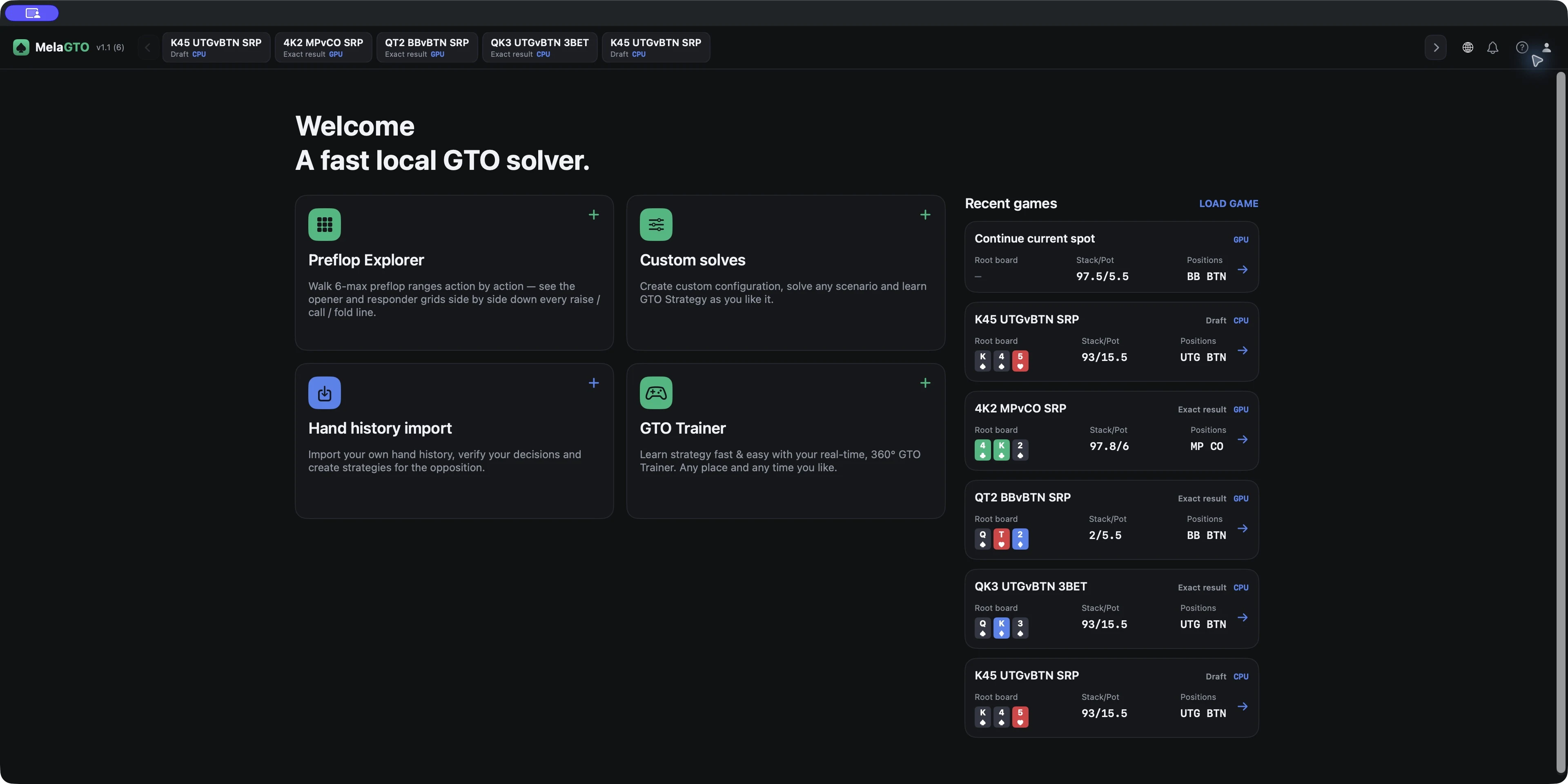
Plan access
| Feature | Free | Essential | Pro | Max |
|---|---|---|---|---|
| CPU (processor) solving + Base Pack | ✓ | ✓ | ✓ | ✓ |
| GPU (graphics processor) solving + no ads | — | ✓ | ✓ | ✓ |
| Hand import + GTO Trainer | — | — | ✓ | ✓ |
| CLI | — | — | — | ✓ |
| Premium Pack | Purchased separately | Purchased separately | Purchased separately | Purchased separately |
Get started
- Start at Home, where the cards are labeled Custom solves and Hand history import
- These examples use version v1.1
- Starting a new local solve may still require sign-in and plan verification, so it is not guaranteed to work fully offline.
Plans and packs
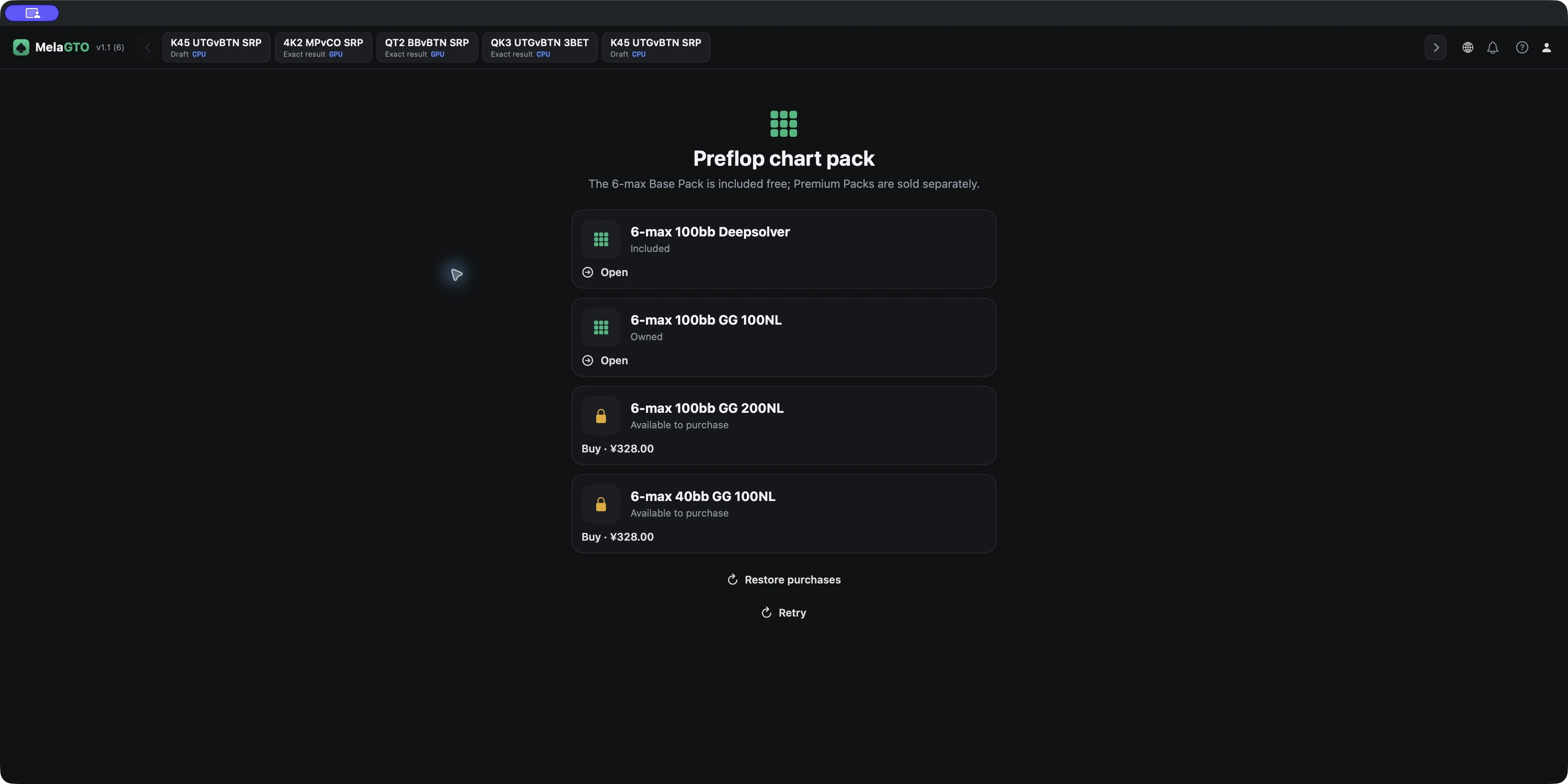
- Free includes CPU (processor) solving and Base Pack (the basic range pack)
- Essential and Pro are monthly subscriptions; Essential adds GPU (graphics processor) solving and no ads, while Pro adds Hand history import and GTO Trainer
- Max is a one-time lifetime purchase that includes Pro and command-line tools
- Premium Packs are purchased separately; check the App Store for current regional pricing
- Use Restore purchases only to restore an existing purchase.
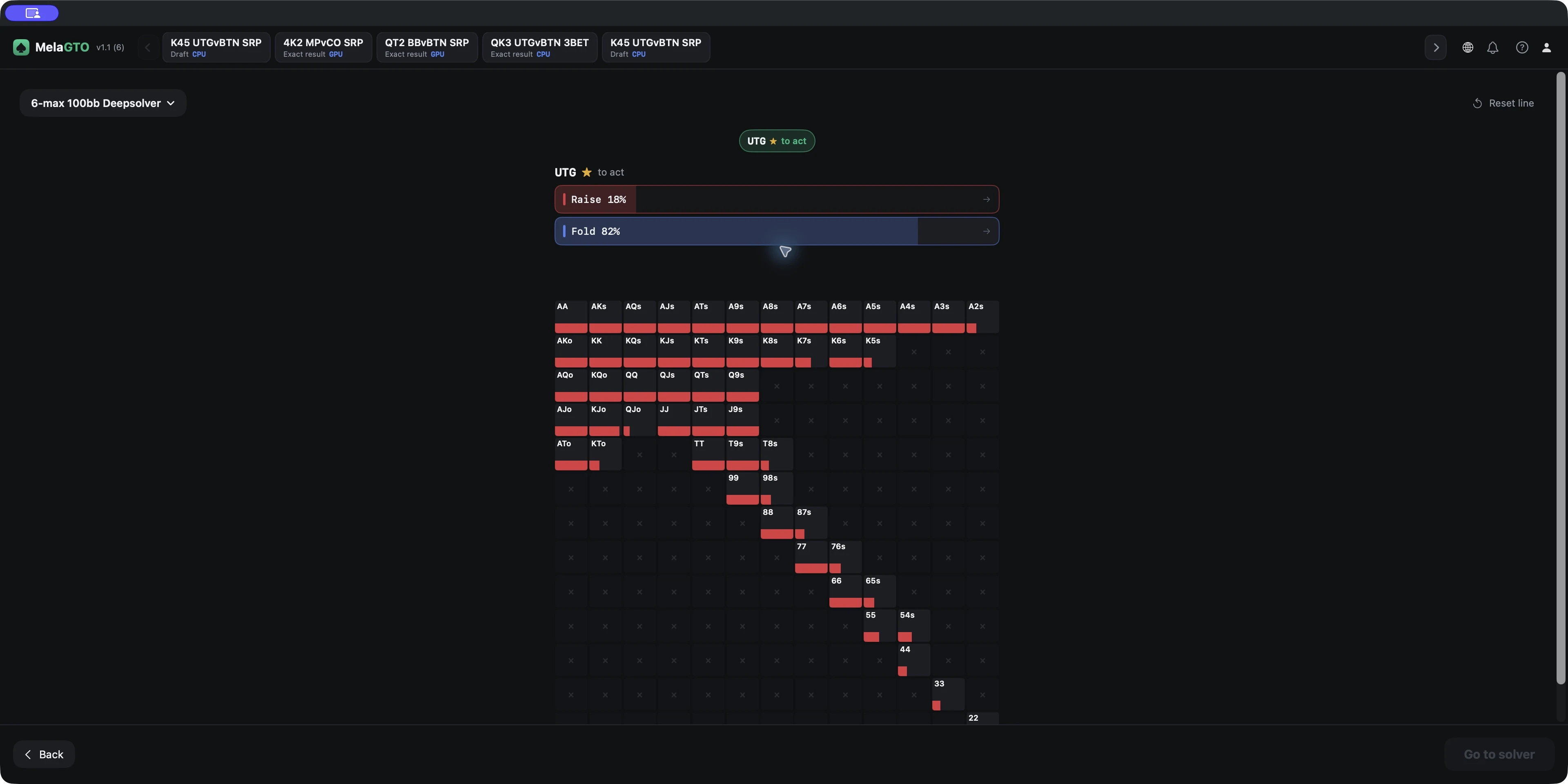
Preflop Explorer
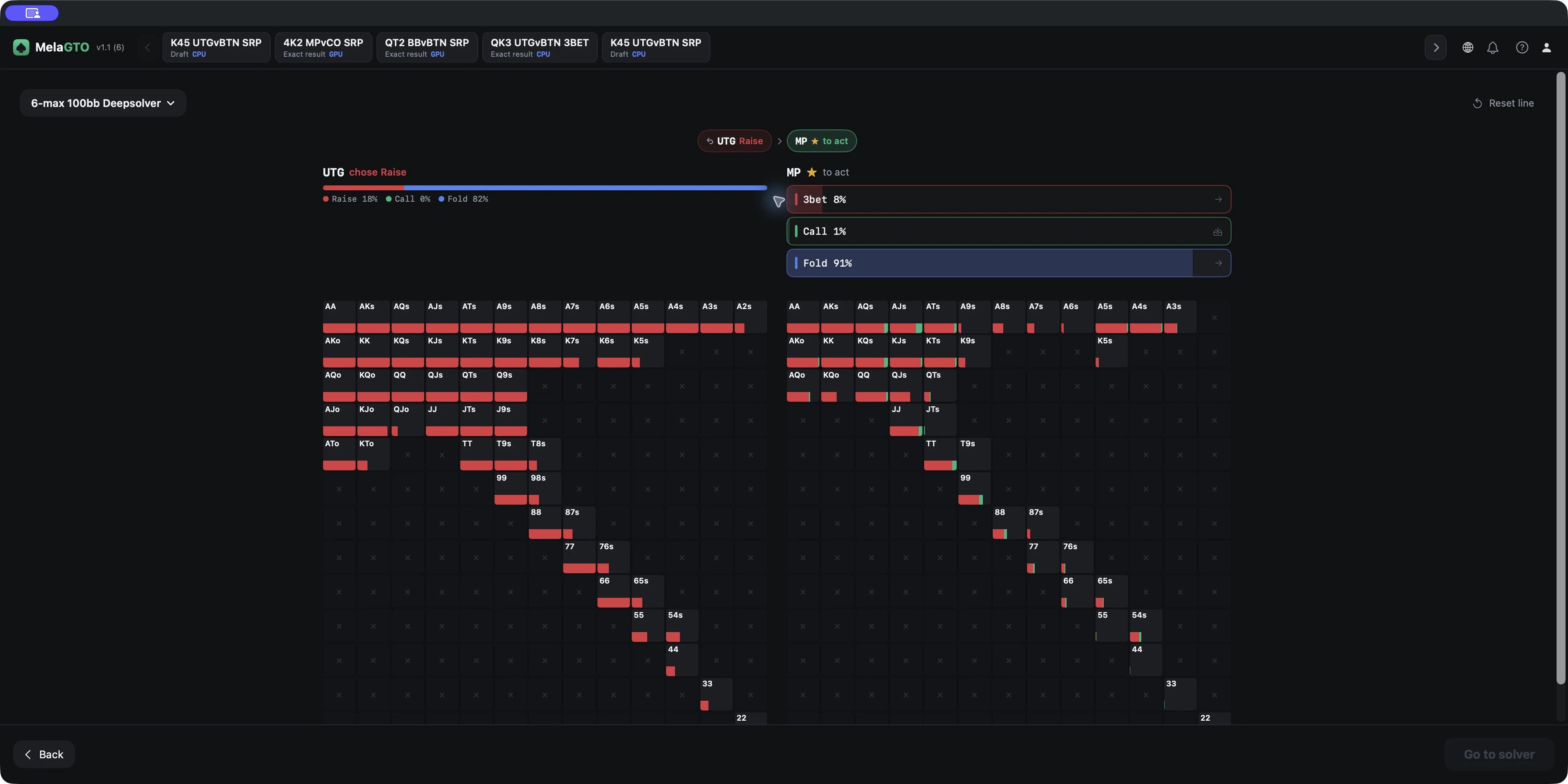
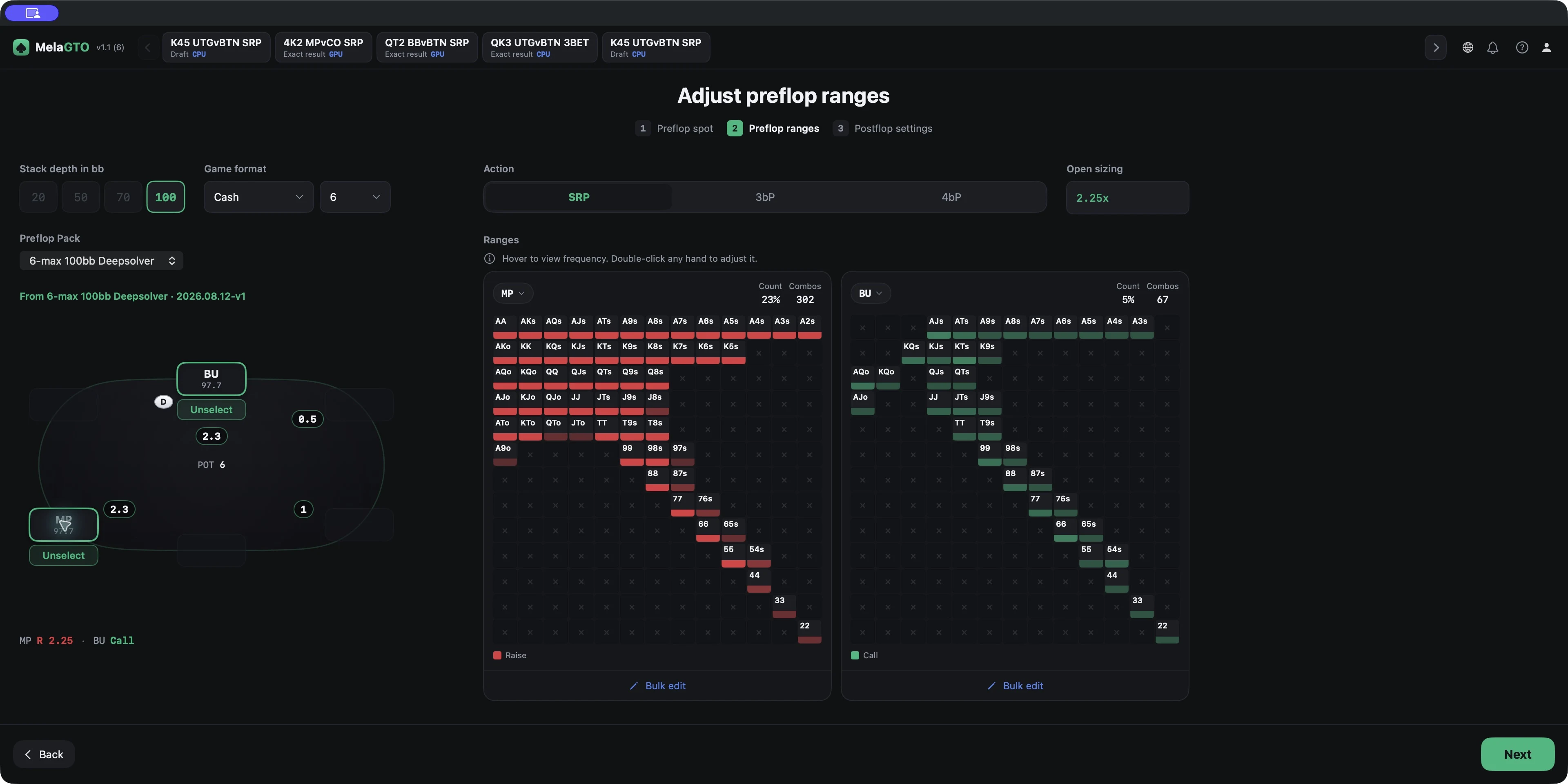
- In Preflop Explorer, open a Pack, choose a position and action path, then compare frequencies in the 13×13 grid
- The example below keeps the full MP 302-combo and BTN 67-combo ranges; viewing a hand class does not change the input range.
Your first solve
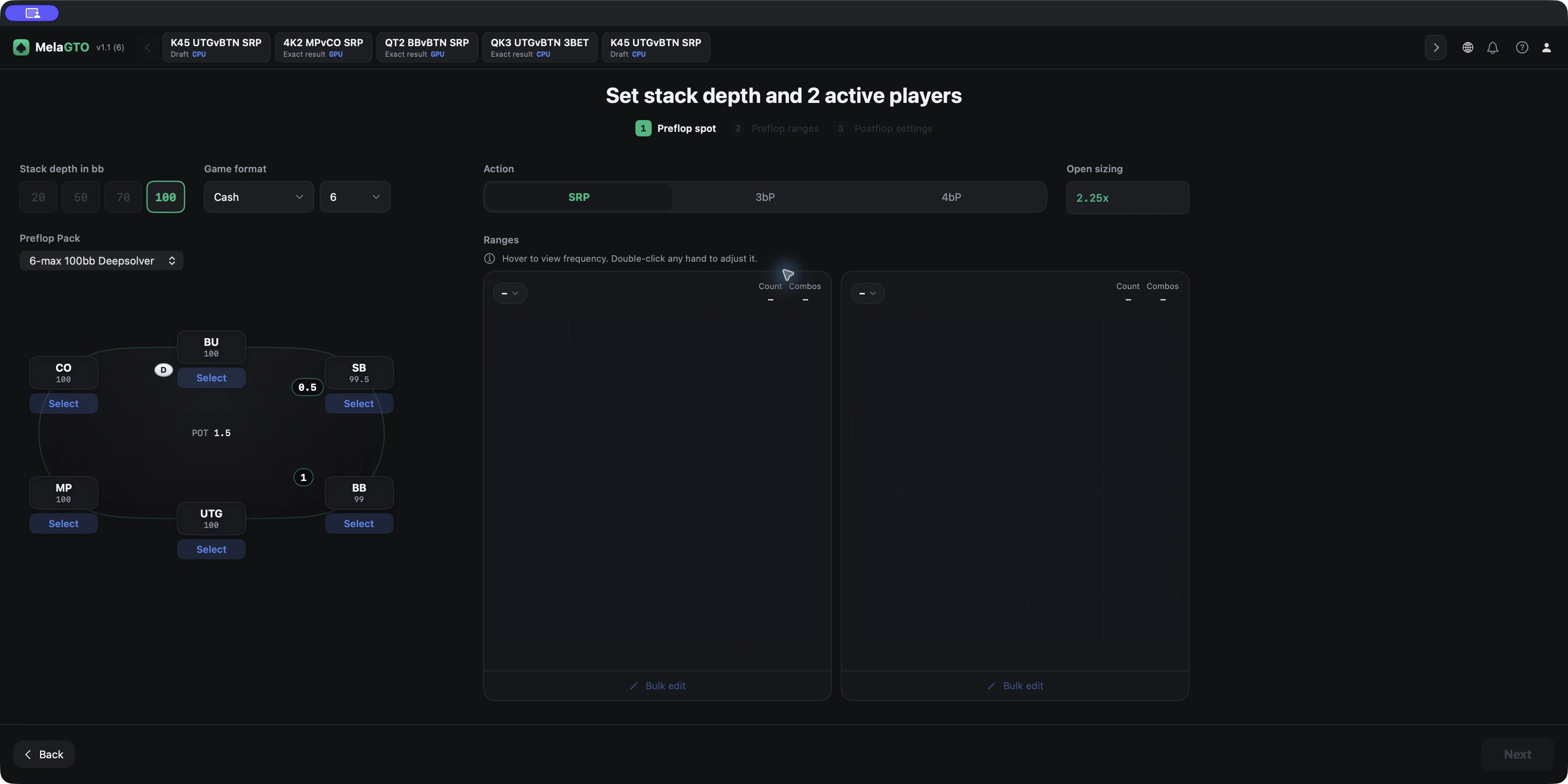
- From Home, choose Custom solves and set up a 100-big-blind (100bb) single-raised pot (SRP): middle position (MP) raises to 2.25 big blinds and the button (BTN) calls
- Keep the full MP 302-combo and BTN 67-combo ranges
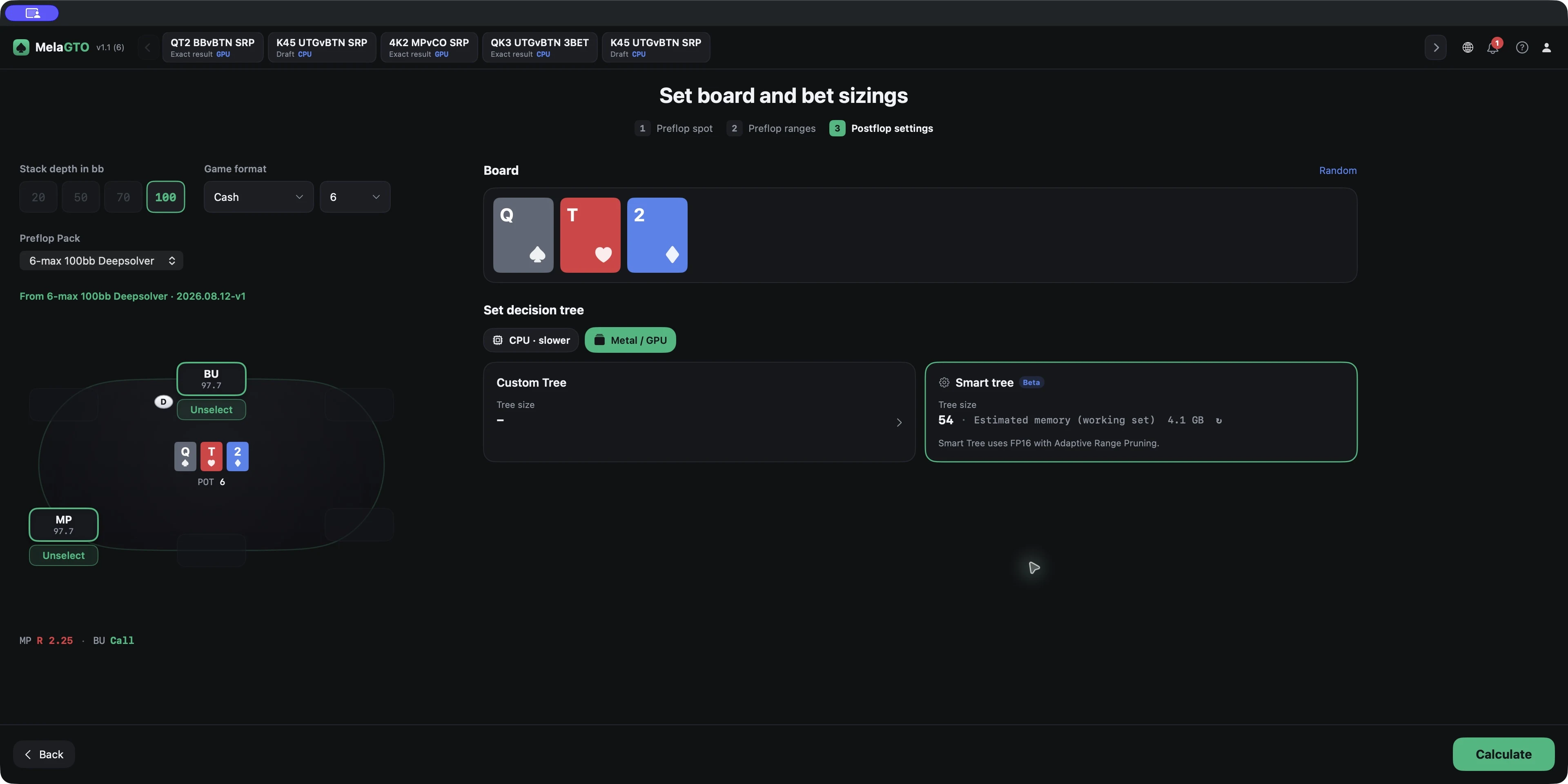
- Set pot to 6, effective stack to 97.75, and the board to Qs Th 2d
- Choose the available CPU or GPU option, review the tree settings, then select Calculate
- Review the strategy after the solve finishes
- This page does not show a complete progress screen.
Tree settings
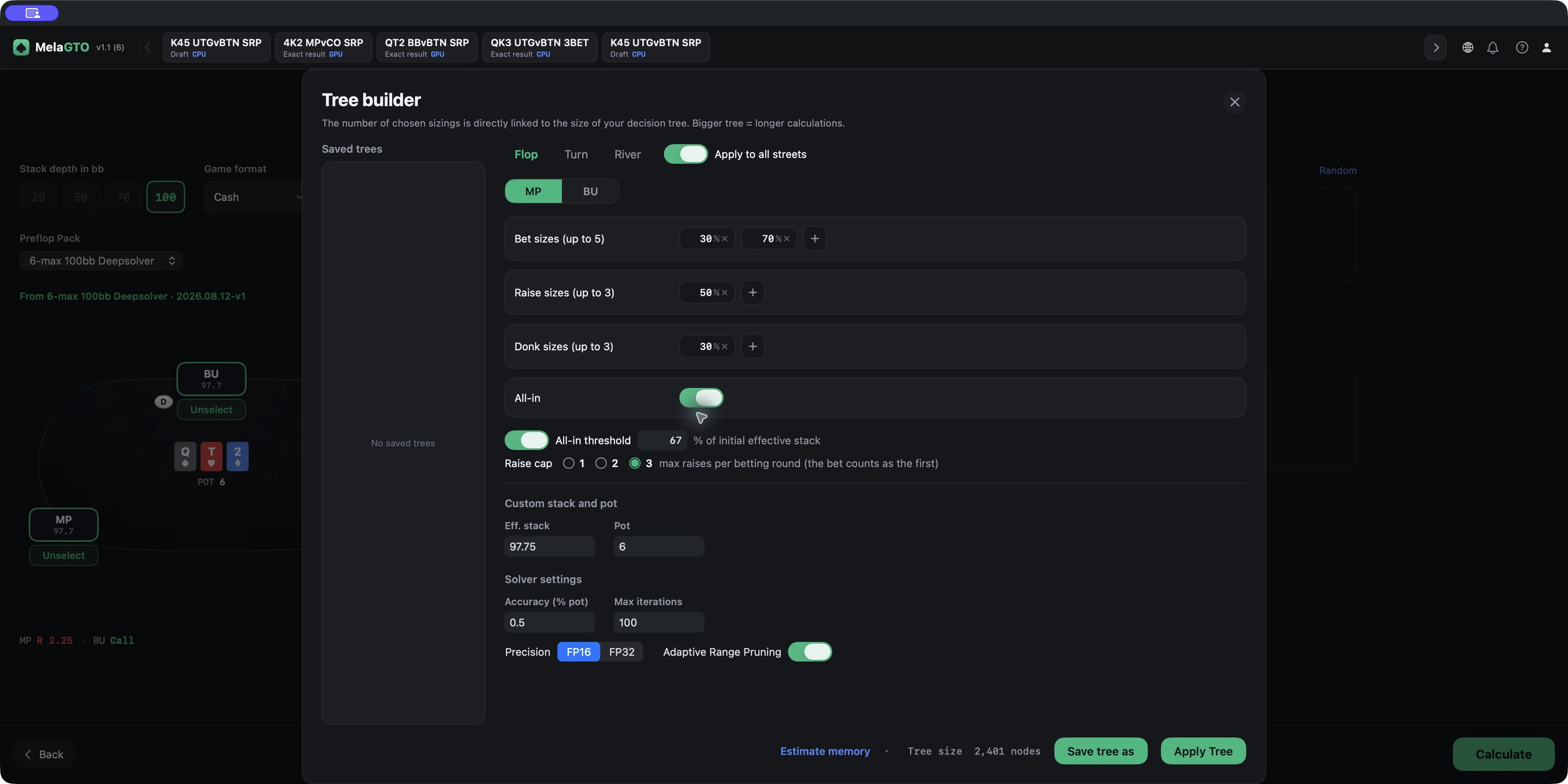
- Choose a postflop tree for the spot
- Smart Tree guides setup, while Custom Tree shows the memory estimate, bet and raise sizes, precision, and settings for each street
- These choices affect cost and output; time and memory depend on the spot.
Strategy and EV
- Open a completed result
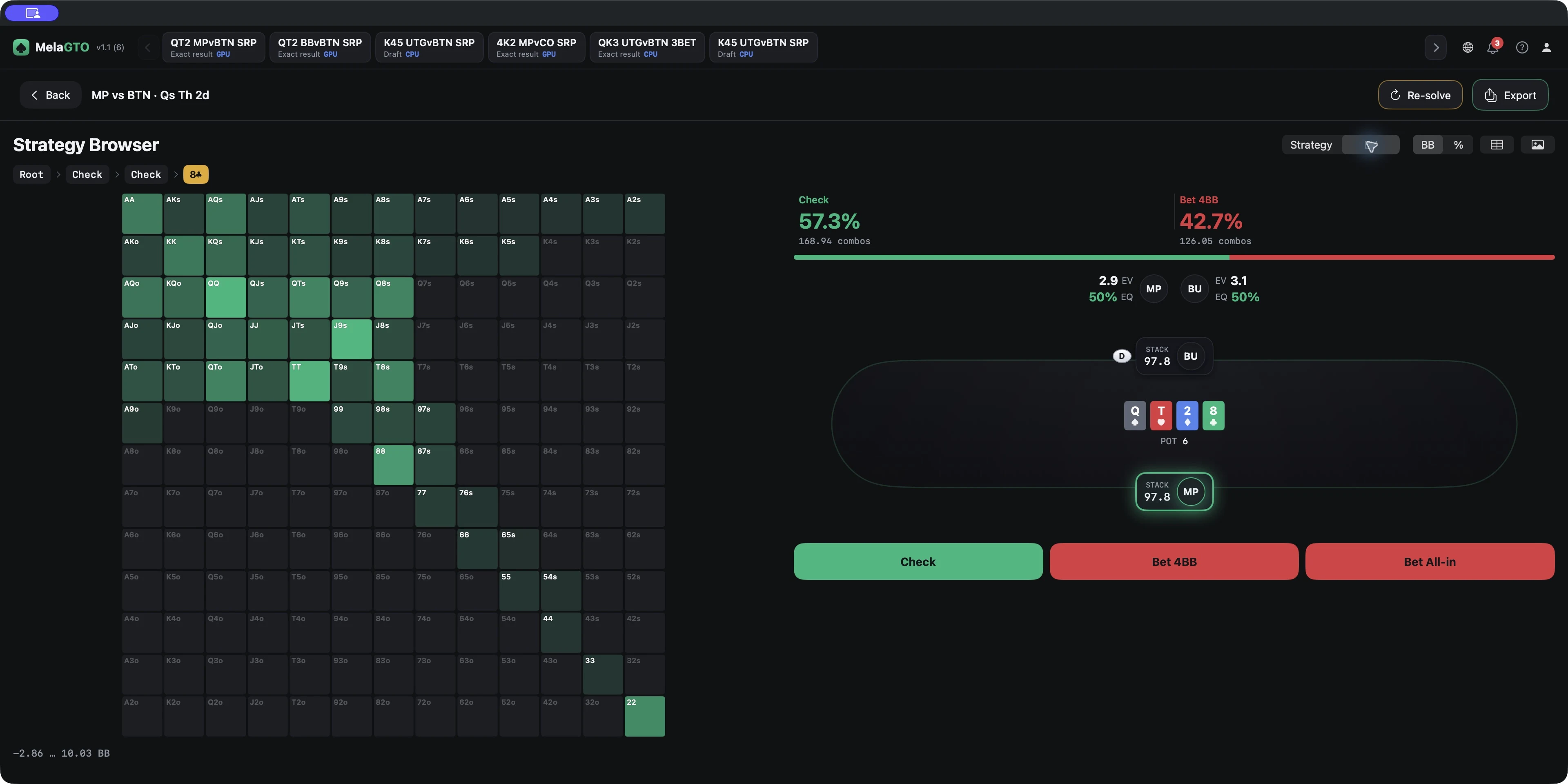
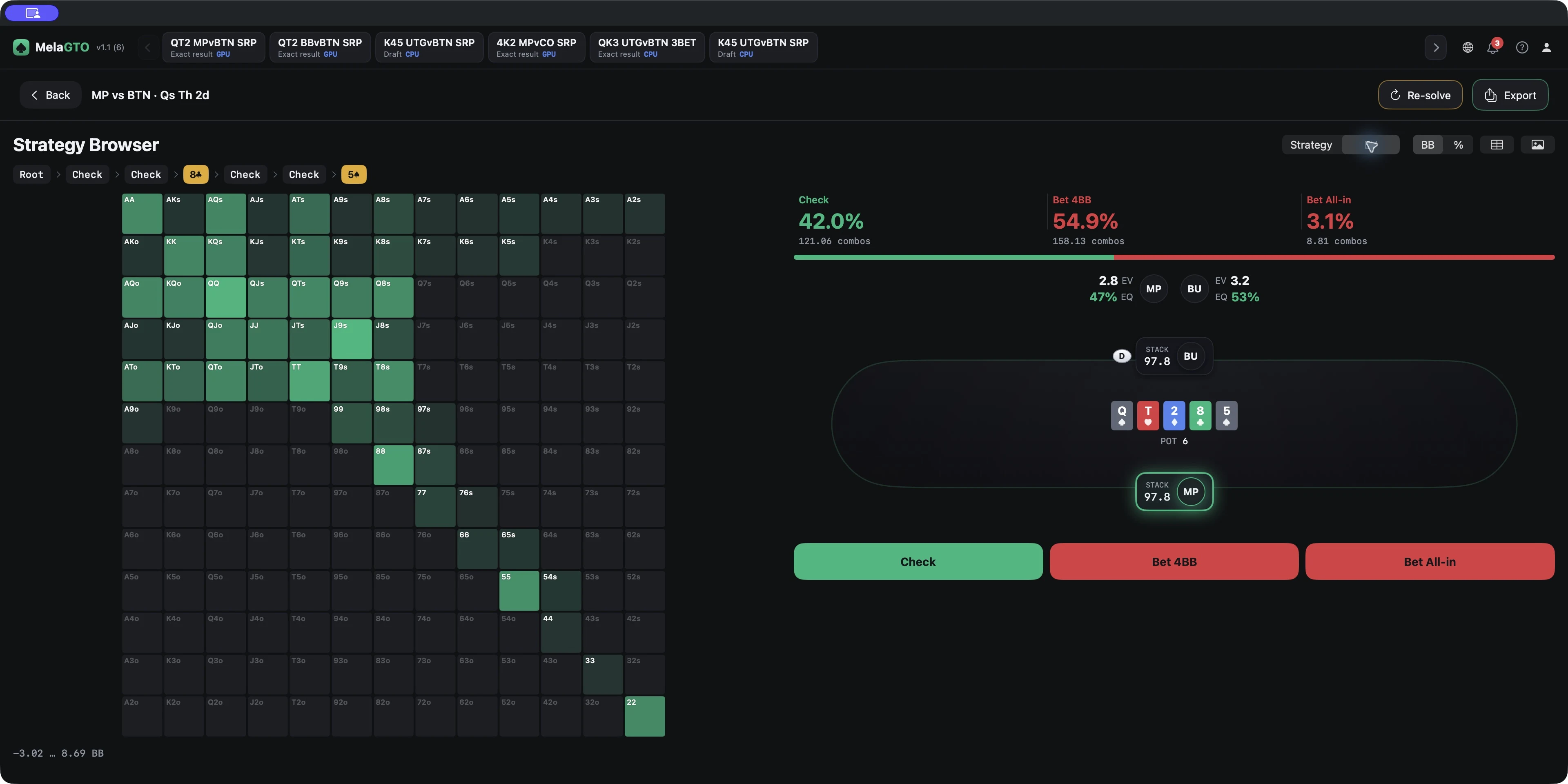
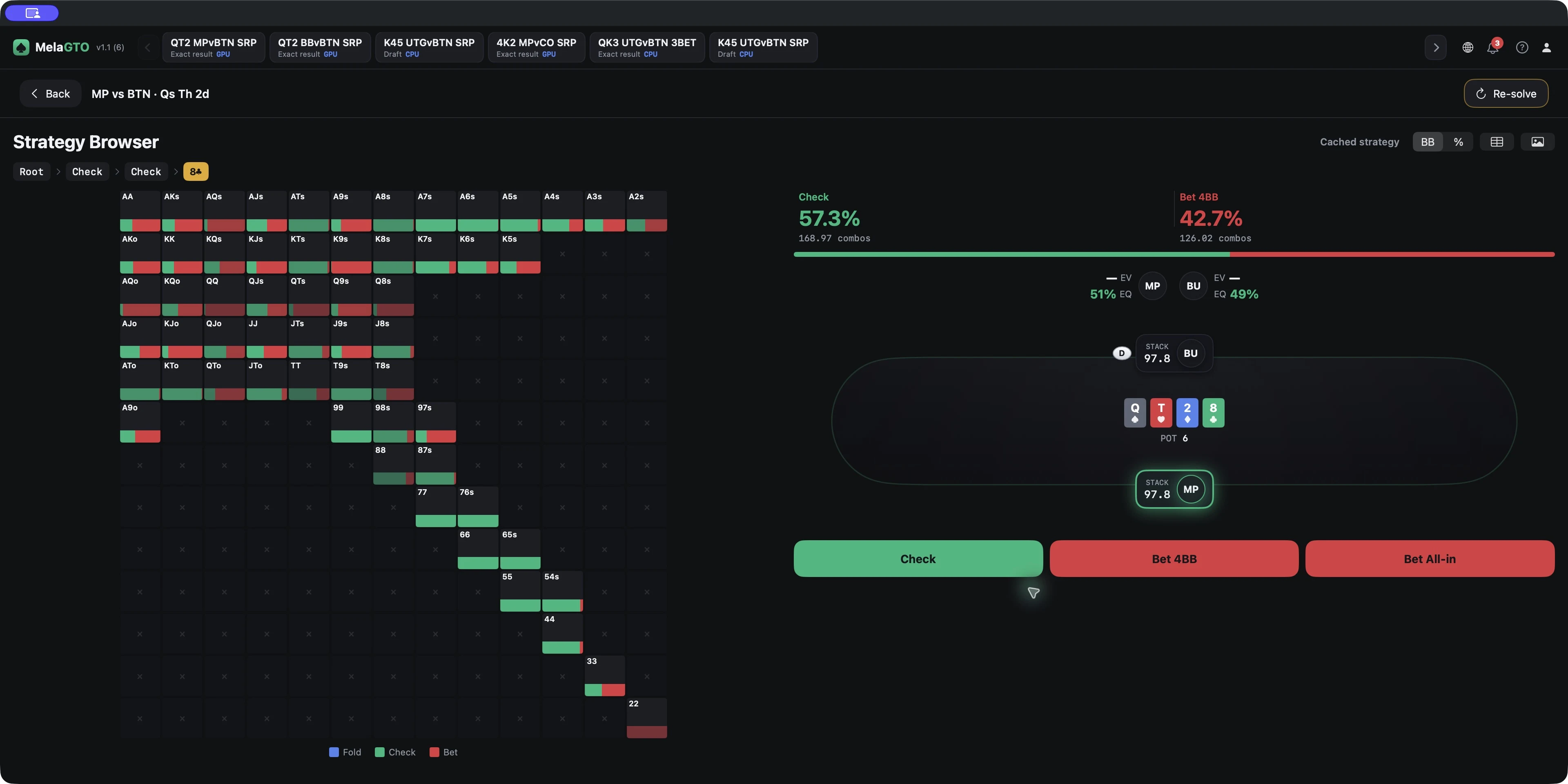
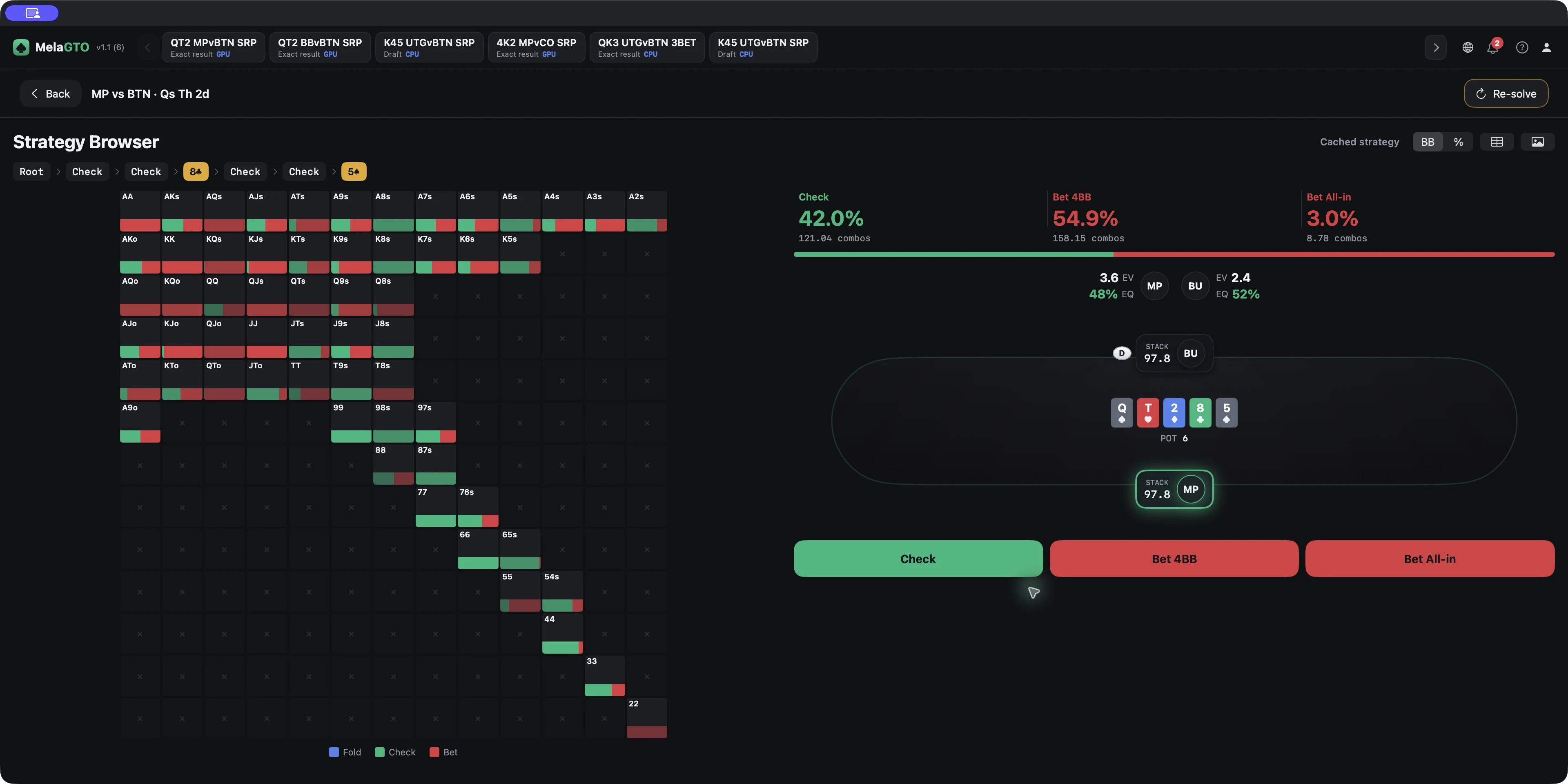
- In Strategy, check the acting player and action frequencies; in EV (expected value), compare the value of each action rather than treating frequency as value
- Read BB and % only where the interface labels those units
- EQ means equity
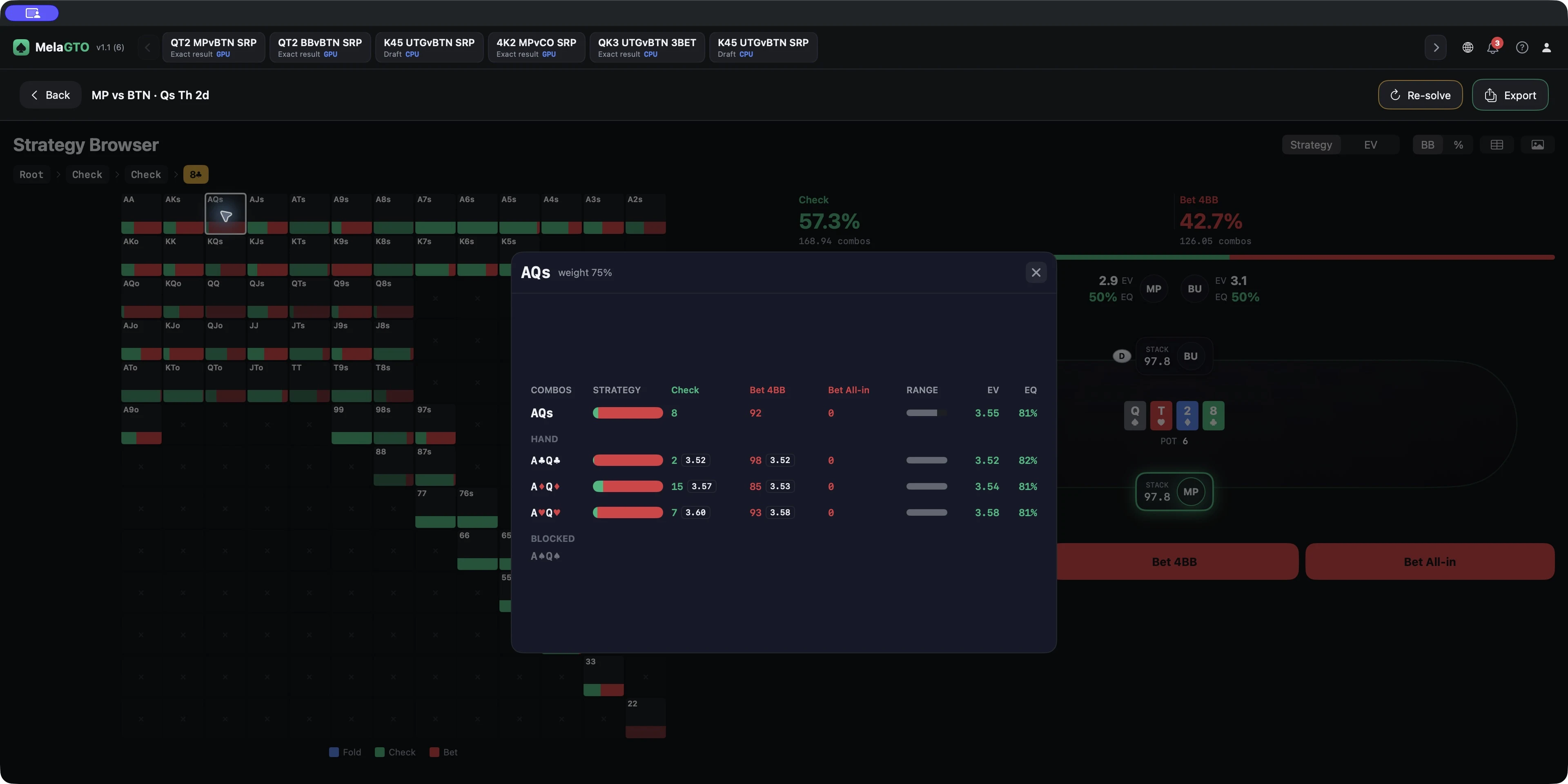
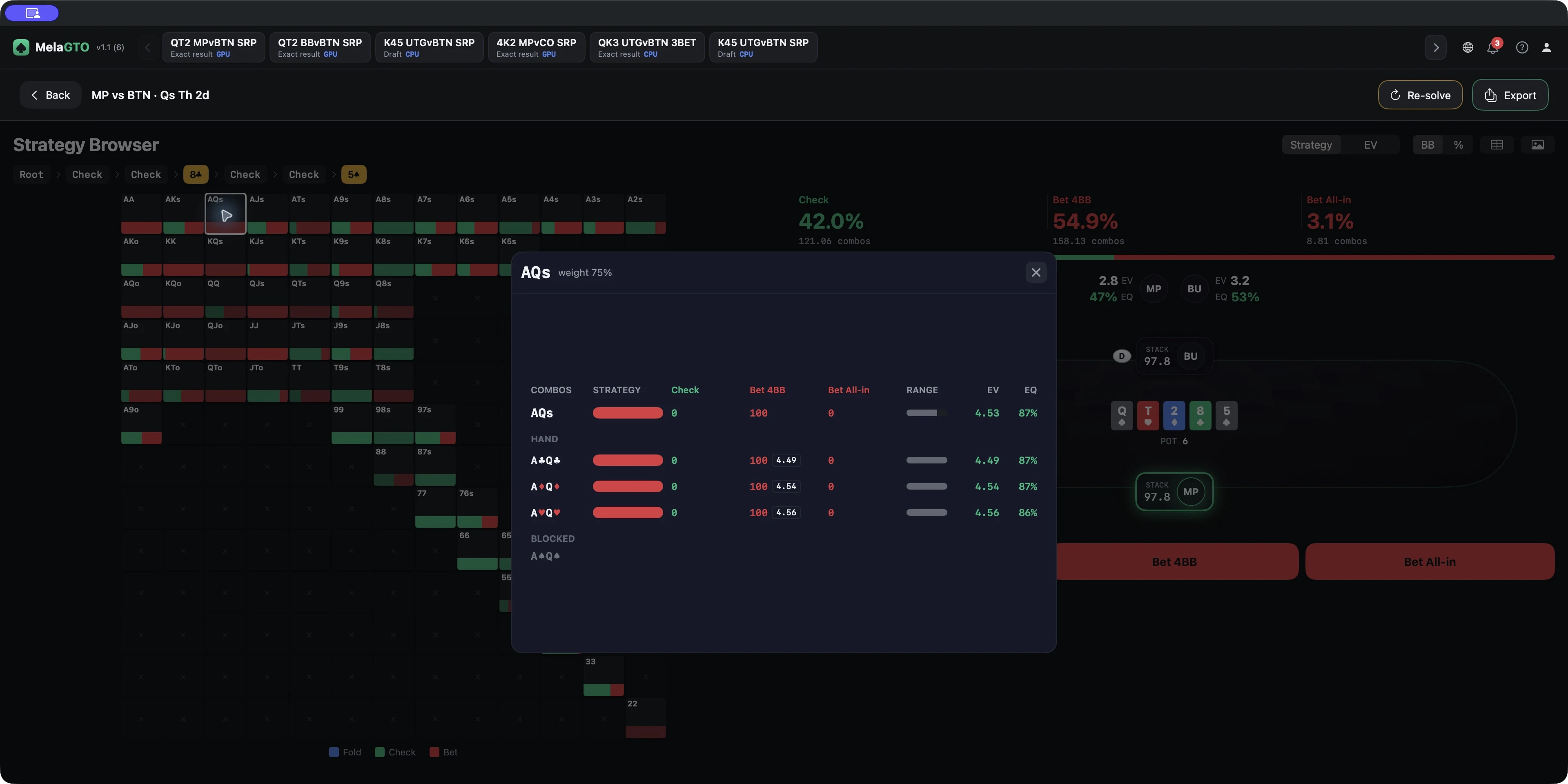
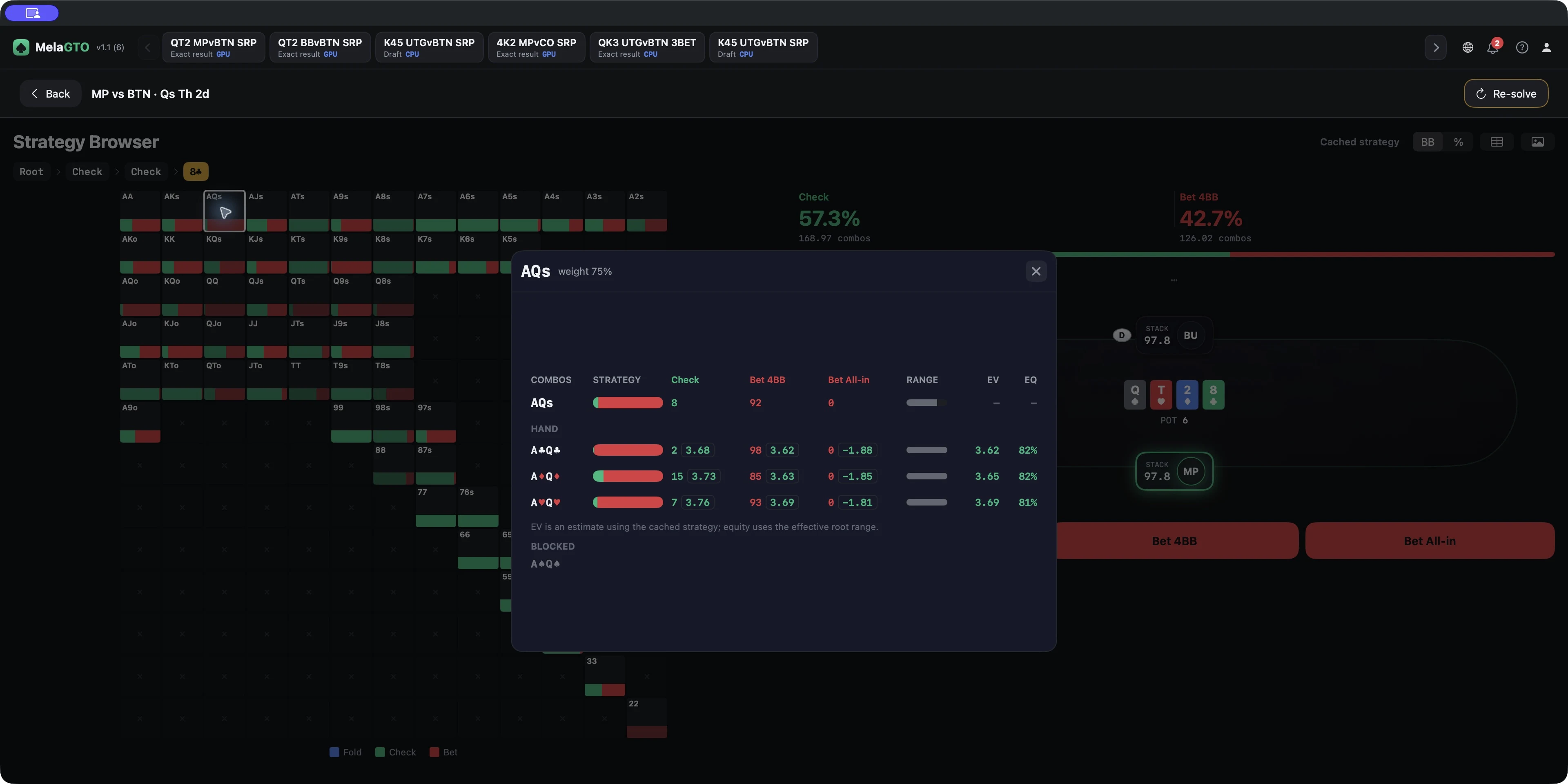
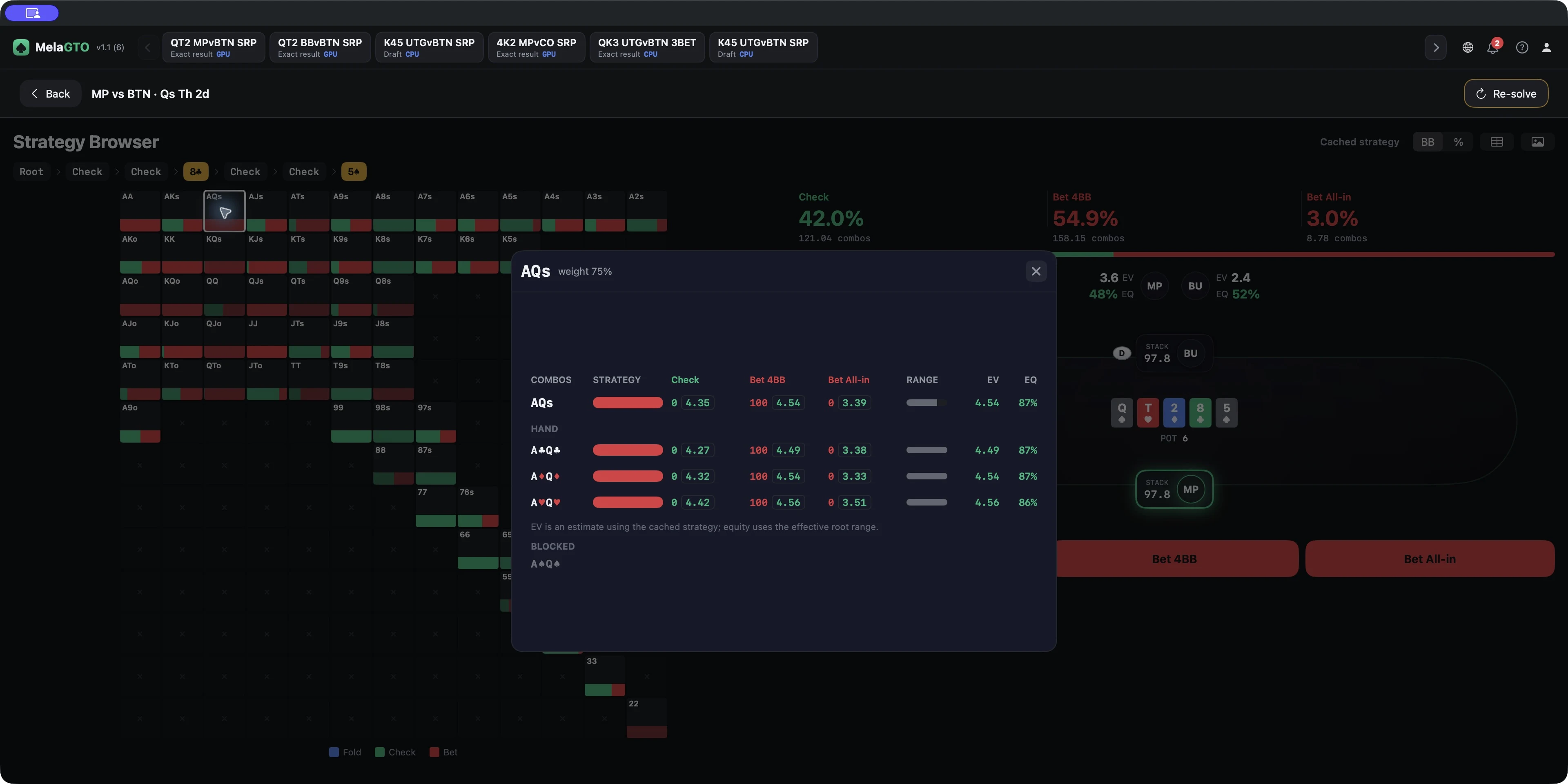
- Open AQs (suited AQ) to inspect unblocked suit combinations, per-action EV, hand EV, and EQ; it is a hand class for viewing, not a smaller solve range.
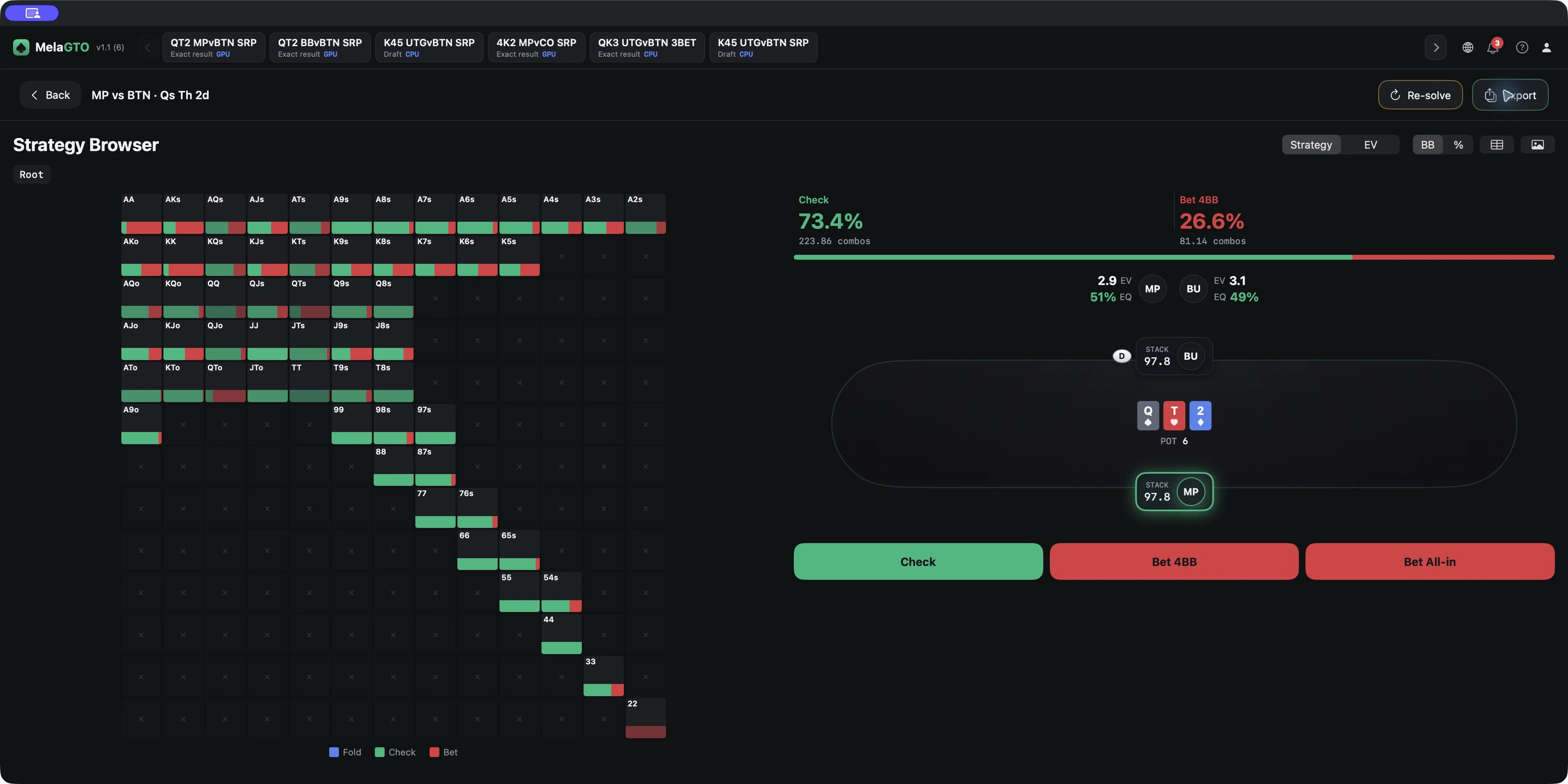
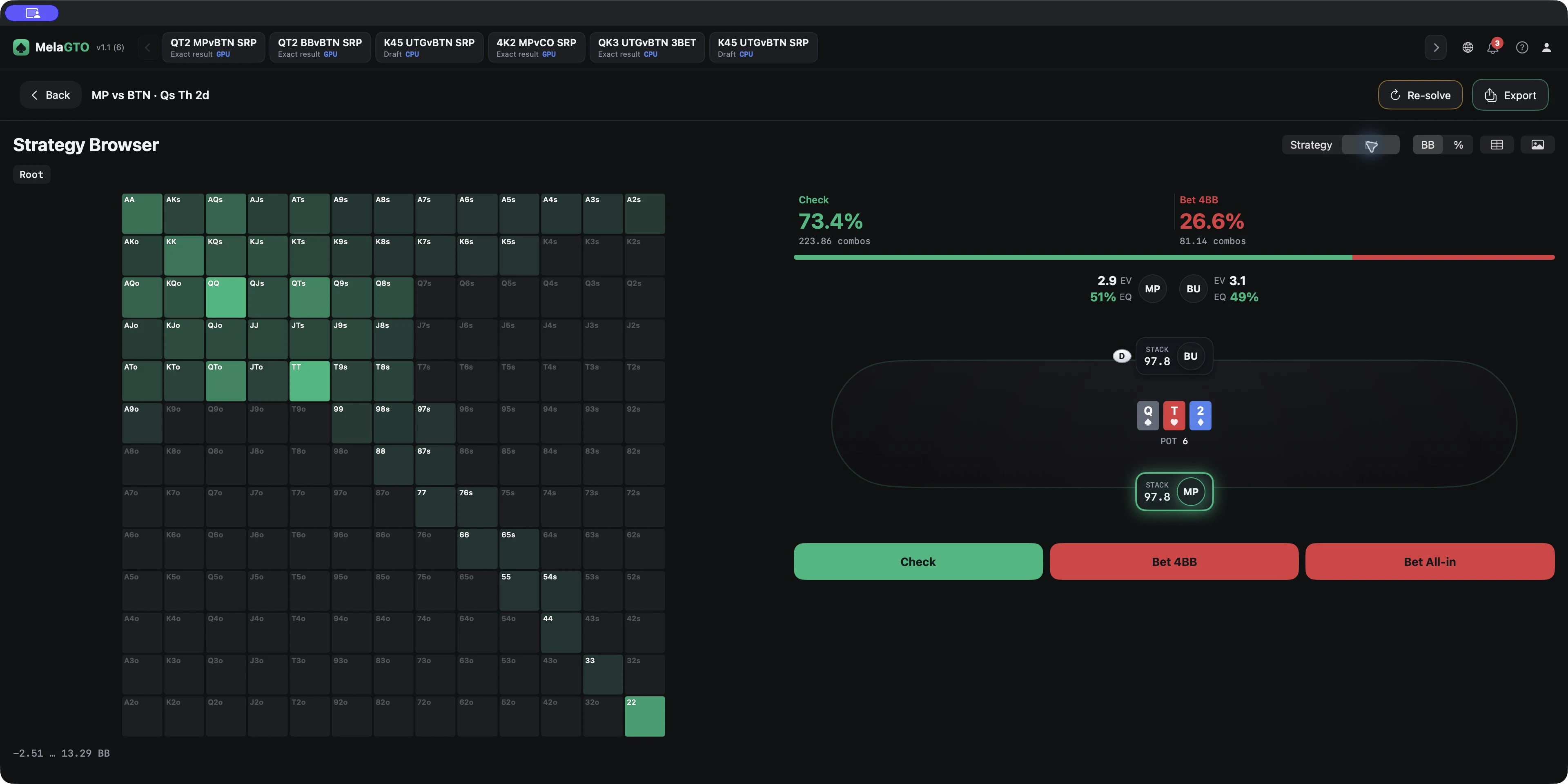
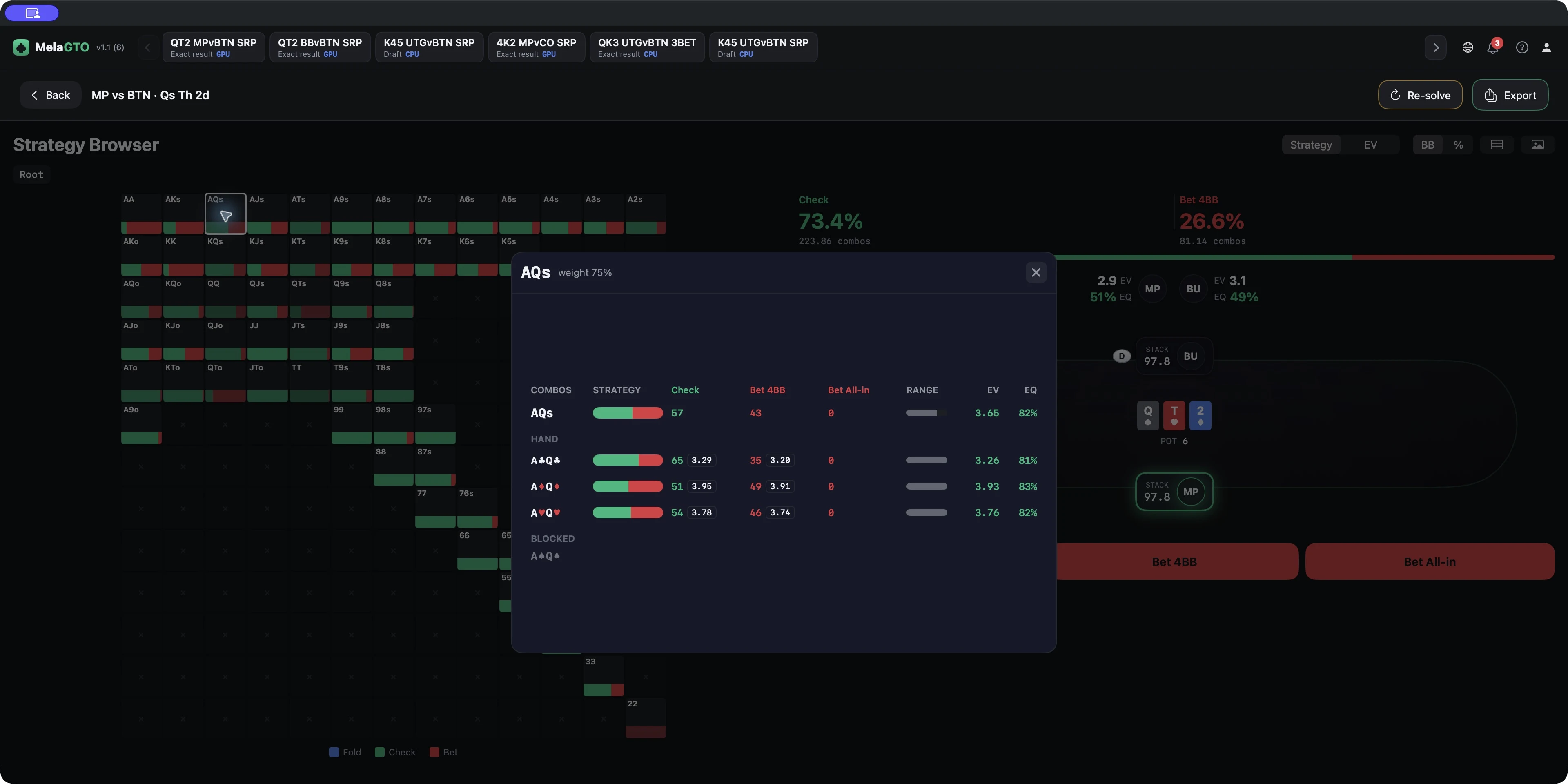
Streets and combinations
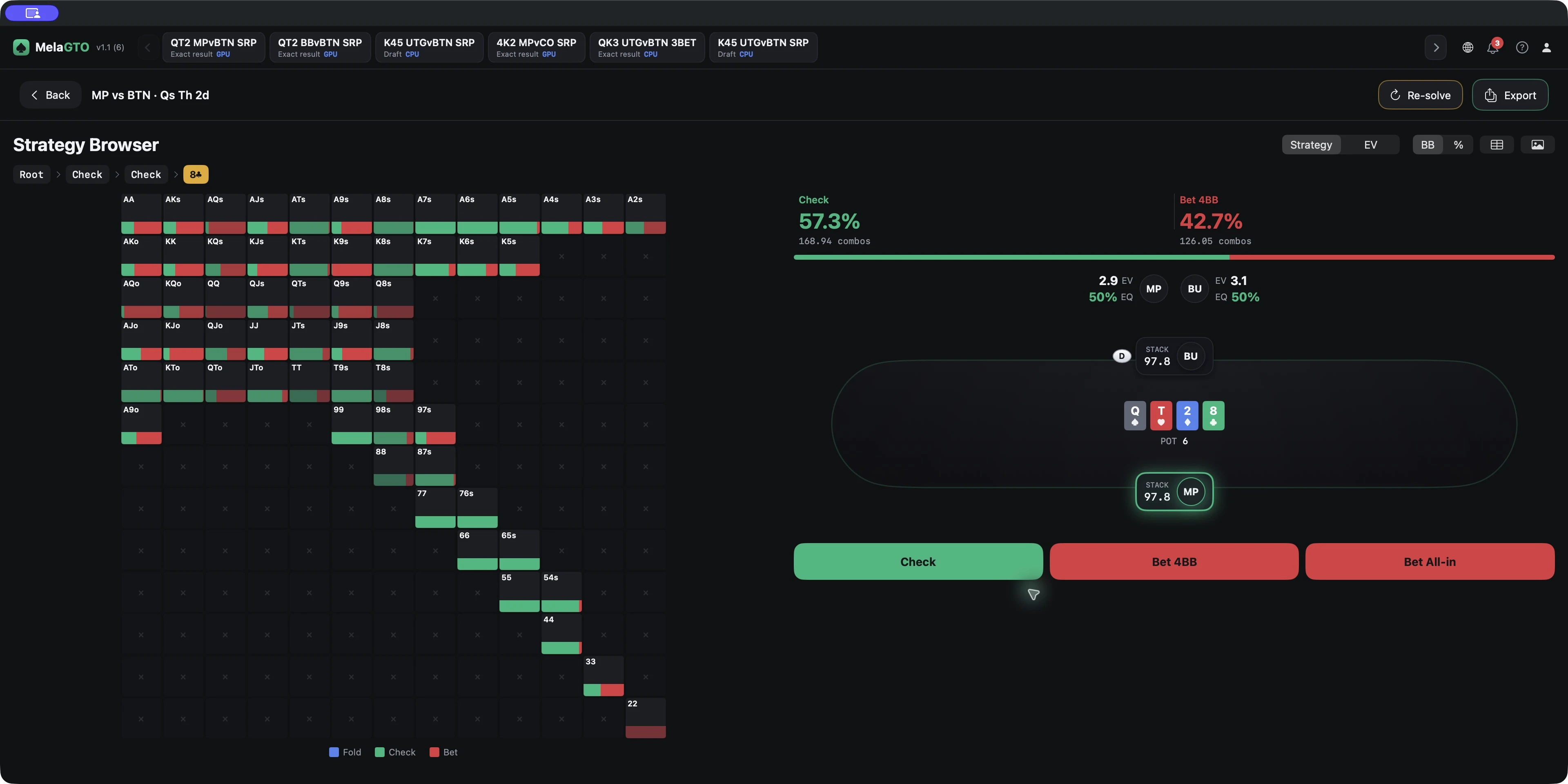
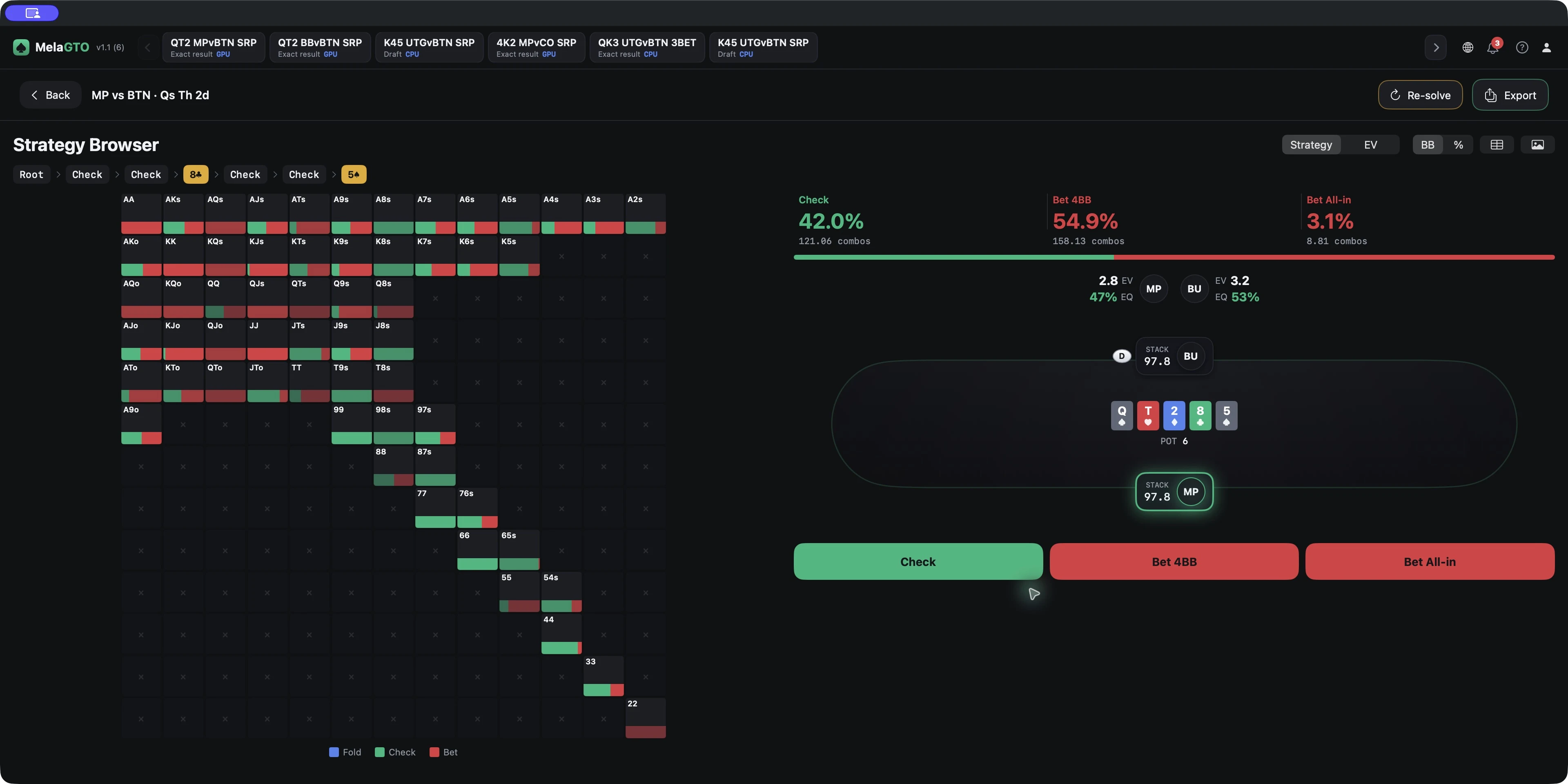
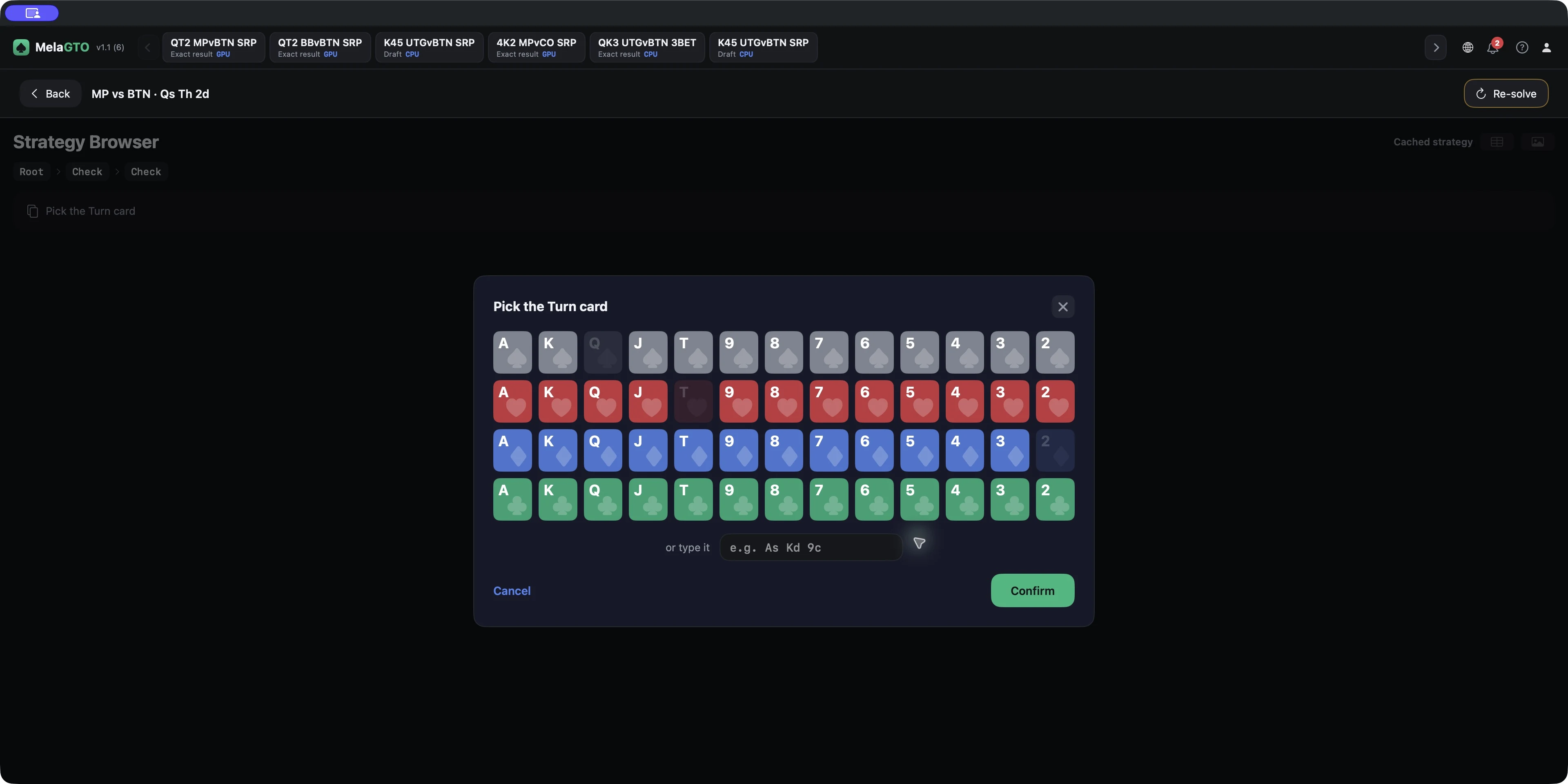
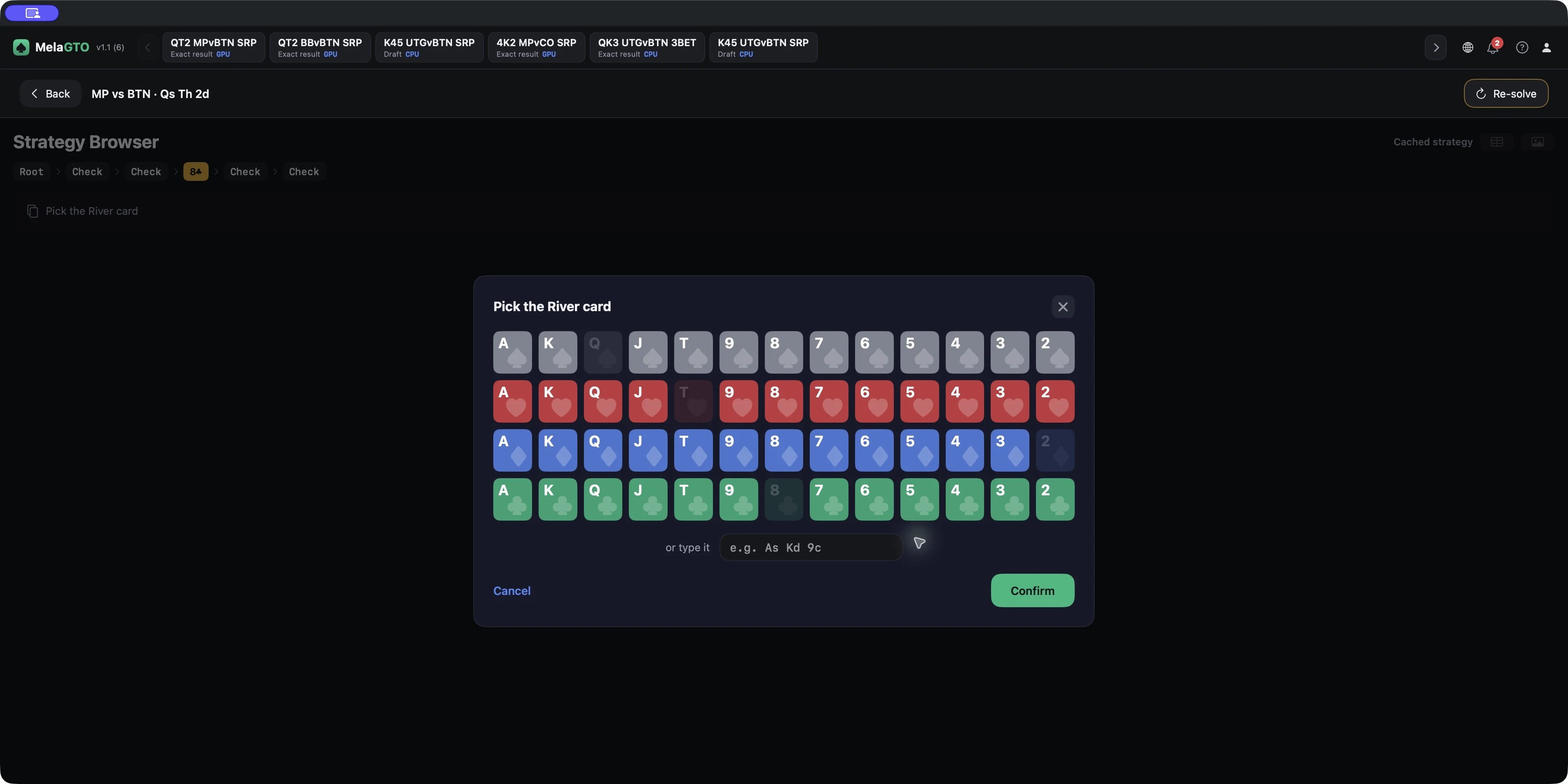
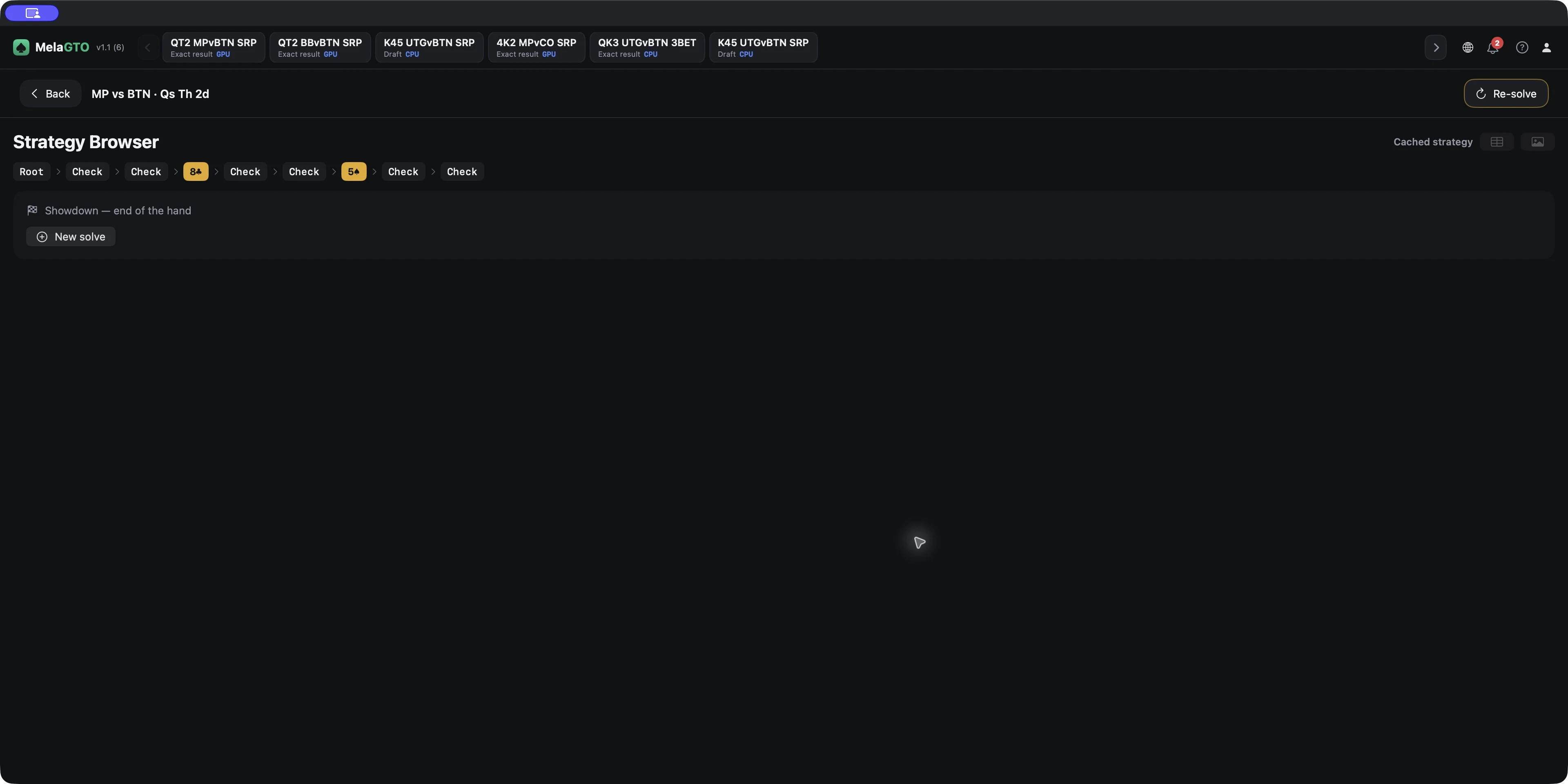
- Follow one live line through all three streets: from Qs Th 2d choose Check/Check, select 8c, then choose Check/Check and select 5s
- The nine images show Flop, Turn, and River Strategy, EV, and AQs details for the same full-range example.
Cache and saved results
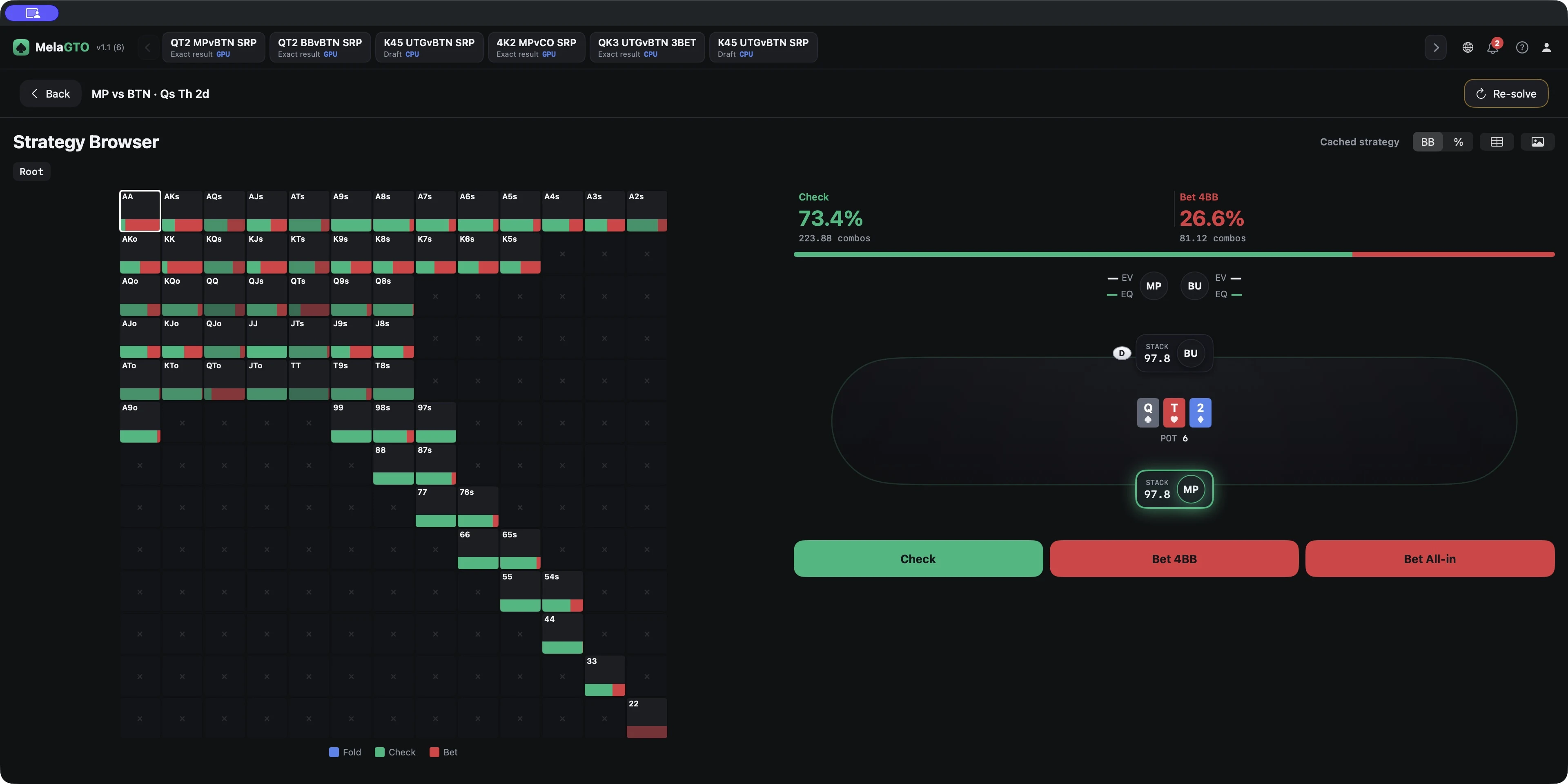
- From Home, open the cached result you want to inspect
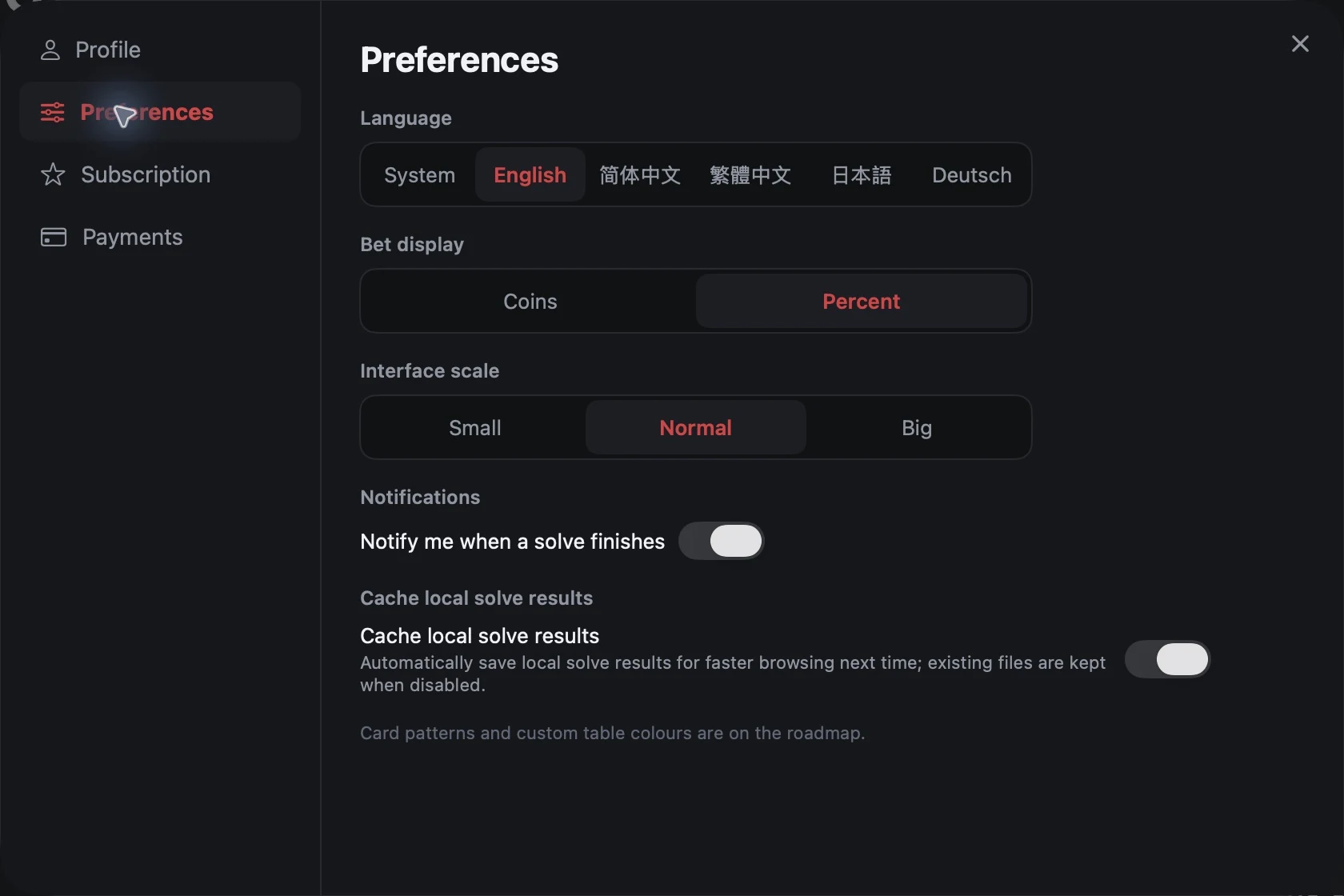
- Automatic cache is on by default; turning it off in Preferences keeps existing files
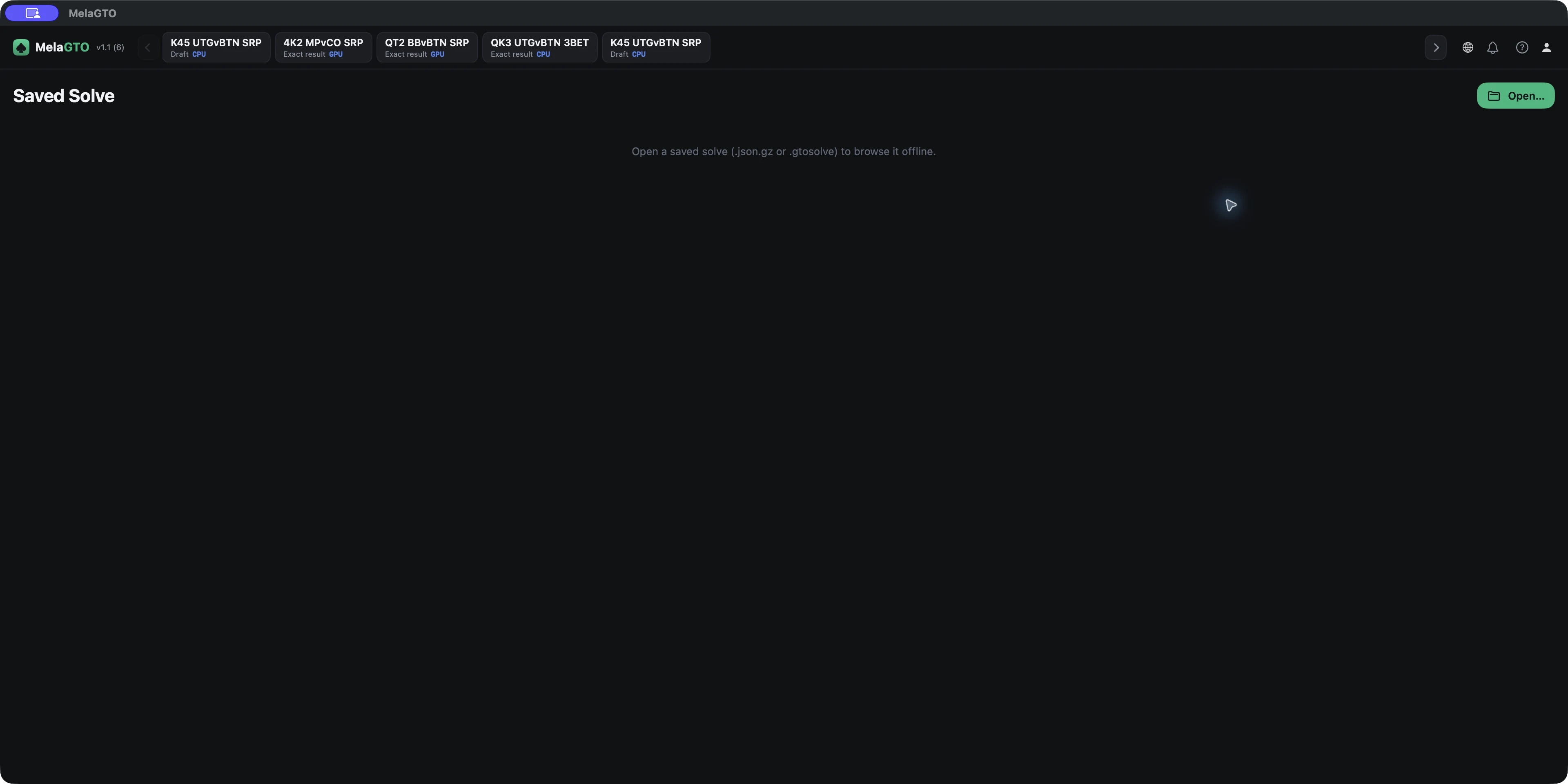
- In Saved Solve, use Open… to choose a .json.gz or .gtosolve file and view a saved result offline
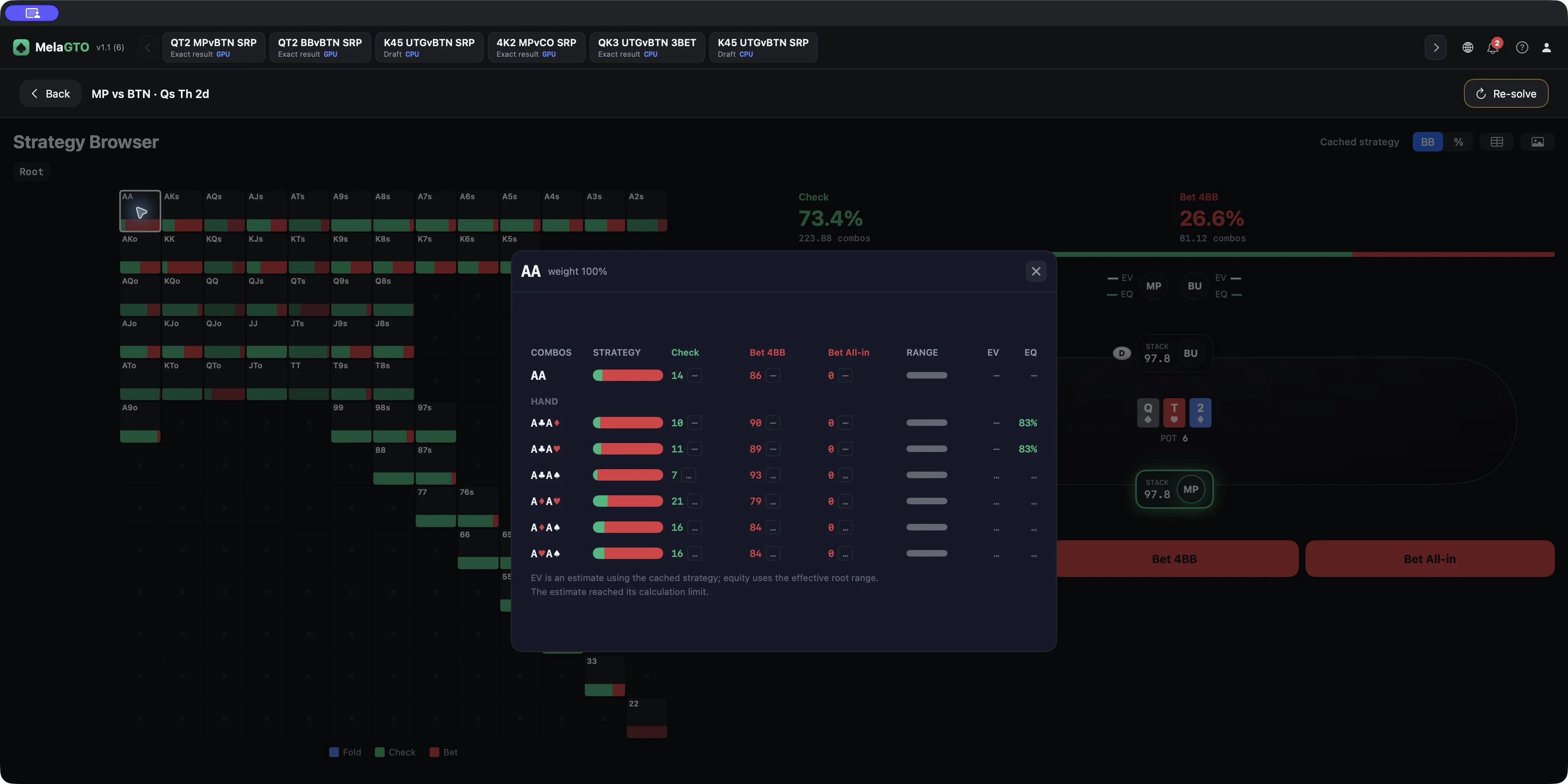
- Cache EV is an estimate: full-range Flop has a calculation limit, Turn summary EV may be unavailable, and — does not mean 0
- Choose Re-solve when you need a new calculation.
Export
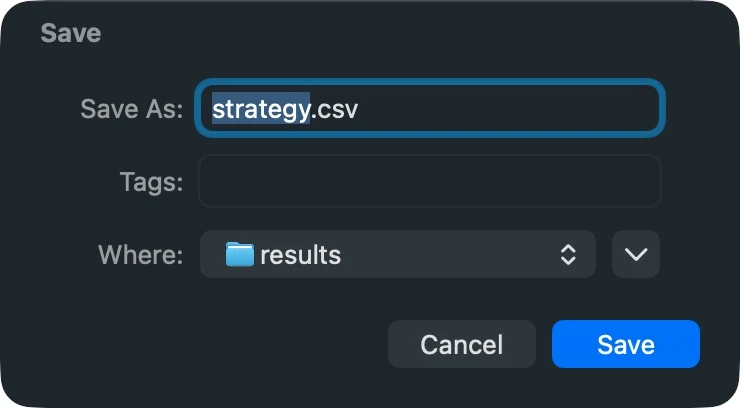
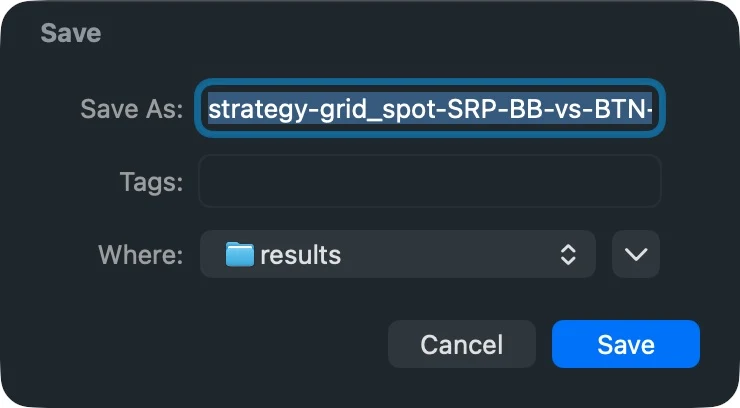
- From a result, choose CSV or strategy PNG export and select a destination
- Saved Solve and archive files reopen existing work
- The examples do not show every export field for every cached node.
Import hands
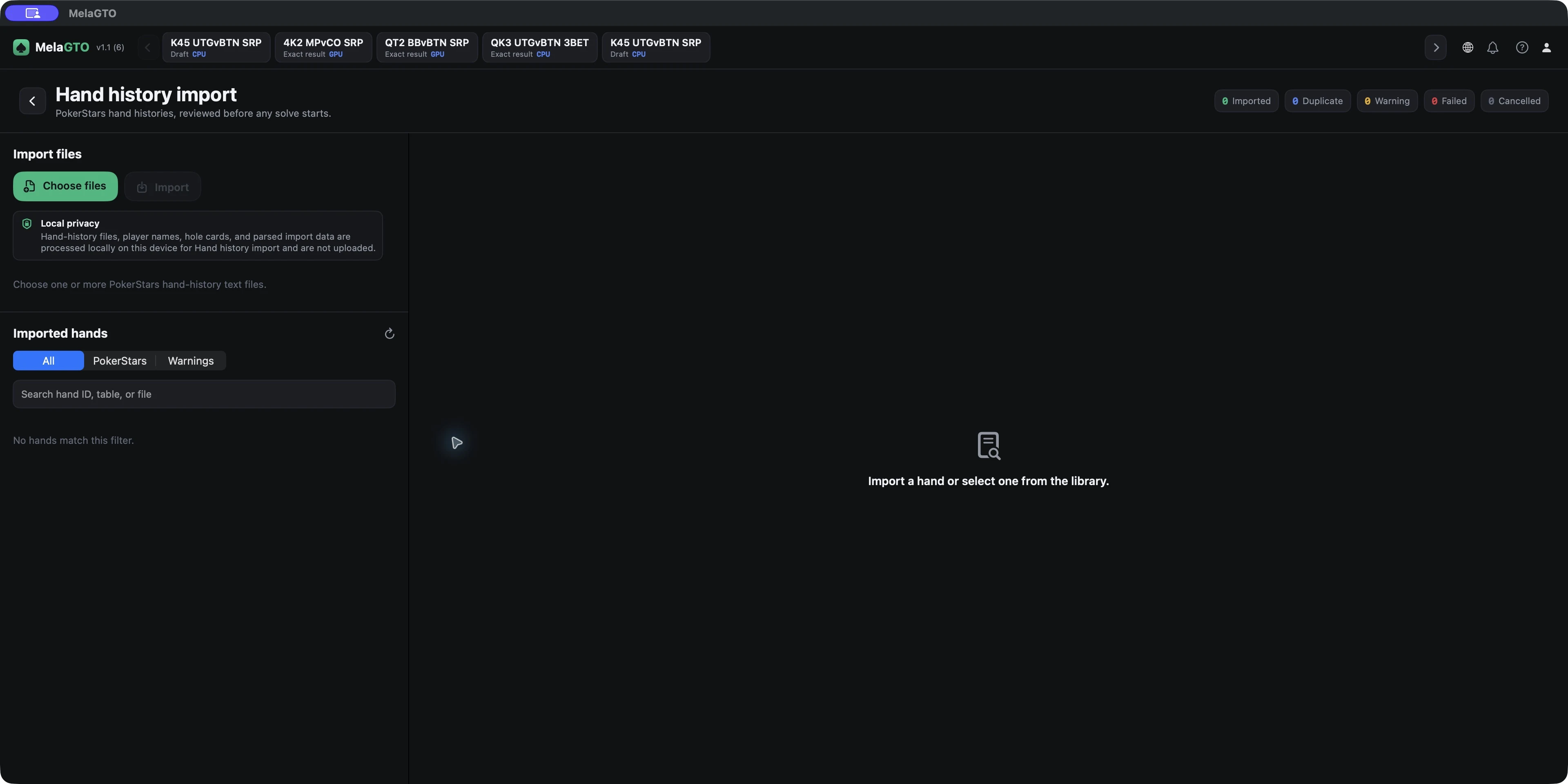
- Hand import requires Pro or Max
- Choose a supported hand-history file, read the notices, and review the action timeline before creating a solve draft
- A public synthetic input is available, but this guide does not show the complete path from a successful import through details to a draft.
GTO Trainer
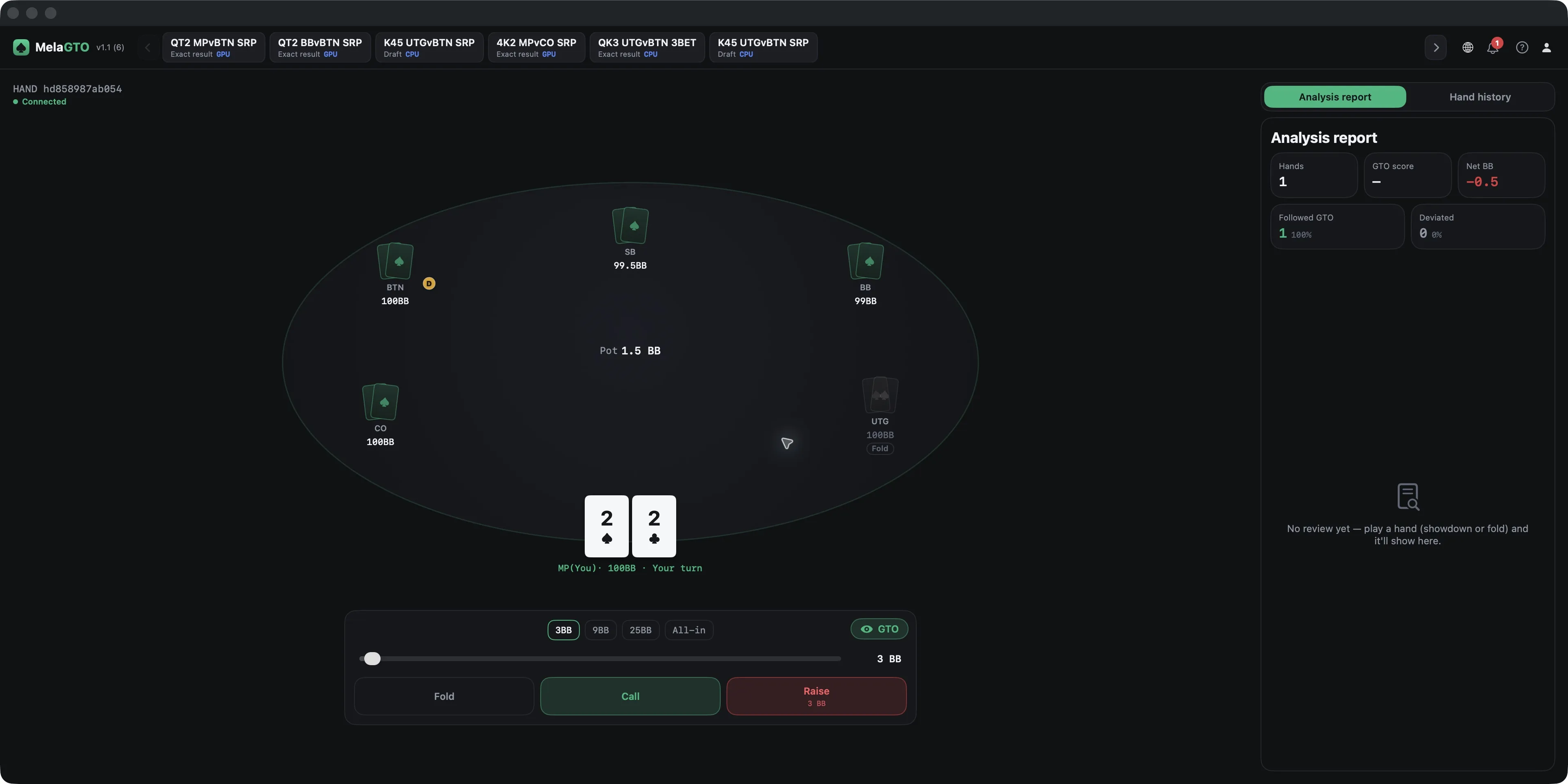
- GTO Trainer requires Pro or Max
- The table provides Fold, Call, and Raise controls, a GTO panel, and Analysis report and Hand history entries
- The screenshot shows GTO score — and No review yet; this guide does not show a completed score or decision review.
Max command-line tools
- Max includes command-line tools
- The commands below show the forms of --solve, --batch, and --query
- The image comes from an independently saved file, not a Terminal session or the full-range example above; a publicly runnable input file is not provided here.
--solve <input.gtospot> --out <output.gtosolve>
--batch <input-directory> --out <output-directory>
--query <input.json.gz|input.gtosolve> --node <root[/segment...]>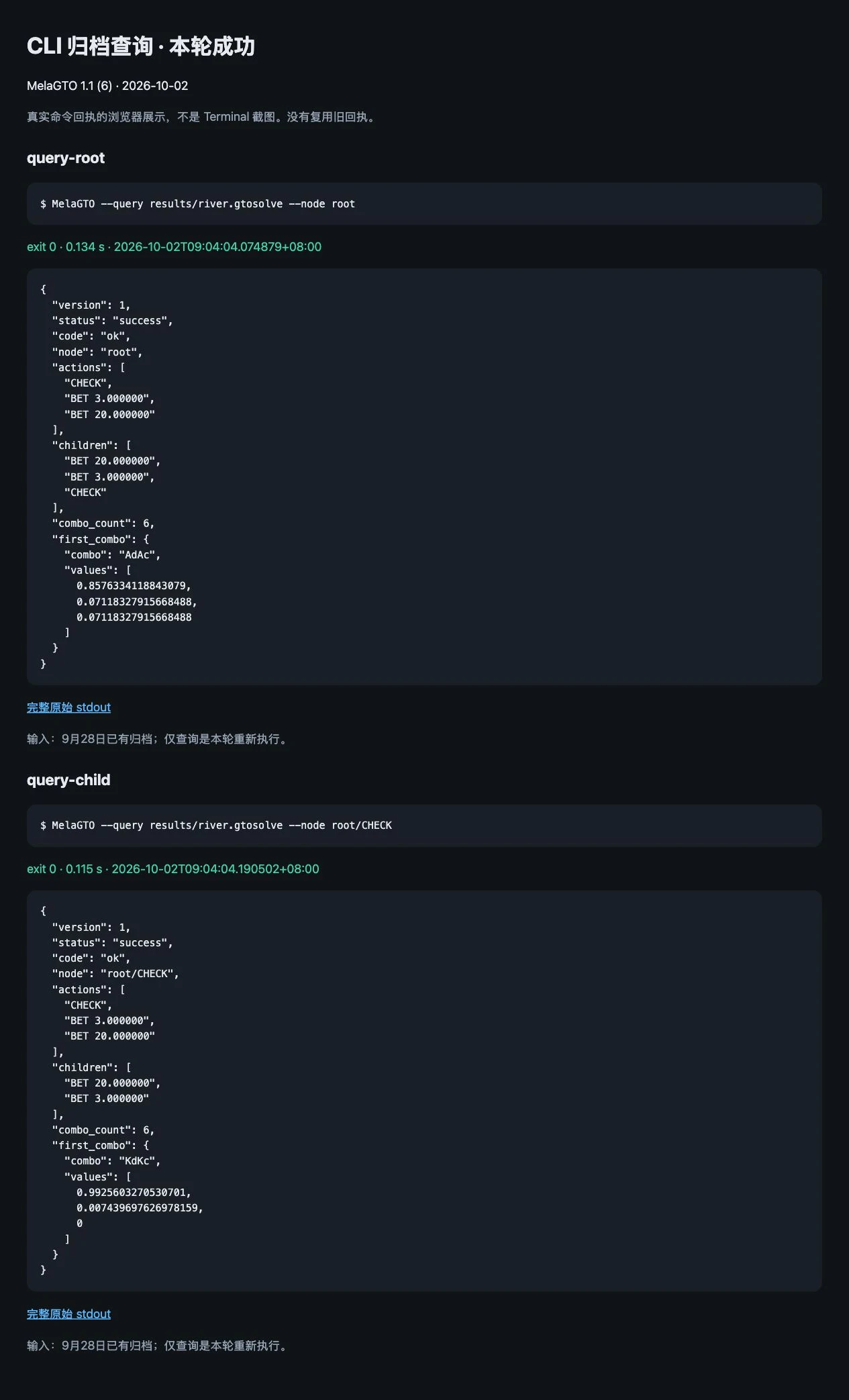
Settings and help
- Use Preferences to review cache and language settings, the purchase screen to review plans, and Help to confirm the version
- Turning off automatic cache does not remove existing files
- Screenshots are version v1.1 examples; use your installed version as the reference for actual features and steps.
MelaGTO is a macOS product maintained by Pokerai API. It is not presented as a third-party case study. This page documents local study workflows visible in the application: range exploration, custom solving, hand review, and practice. The postflop solver runs on the user’s Mac through MelaSolver GPU or CPU. Hand-history import currently supports selected cash-game hand-history formats from PokerStars, GGPoker, 888/Pacific, Winning Poker Network, and Bovada/Ignition; unsupported game types show a specific reason. This page makes no claim about commercial adoption or third-party validation. MelaGTO is for poker study, analysis, and practice. It does not enable real-money betting, deposits, withdrawals, payouts, cash games, gambling transactions, or real-time assistance at live real-money tables.
See the related API integration record: Counterplay →